
MegaTGAI · Practical guide
Analyze and filter a Telegram group list with AI
A large group list is not necessarily a useful one. Many groups are filled with spammers: a stream of ads and almost no genuine conversation. Automatic filtering helps remove those groups and keep communities where people actually talk — the places worth reaching your audience.
Click a screenshot to enlarge it.
Add your group list
Open Parser → Chat checker and paste your links. This section analyzes an existing list; it does not discover new groups.
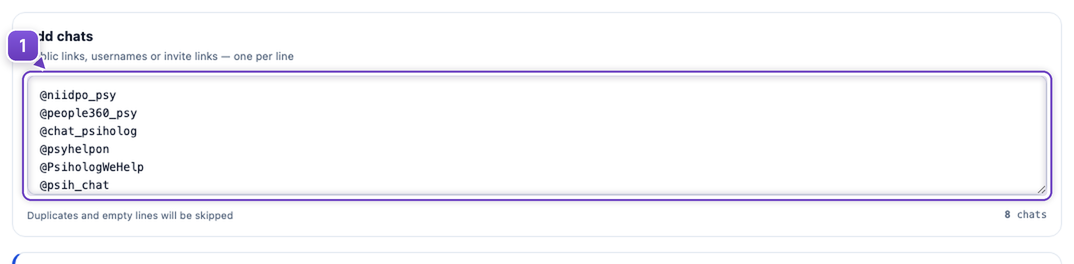
- Paste group links or @usernames. Duplicate and empty lines are skipped.
Remove noise and specify your topic
Automatic checks look for advertising and genuine conversation. AI then decides whether the messages meet your own criteria, saving you from opening thousands of groups manually.
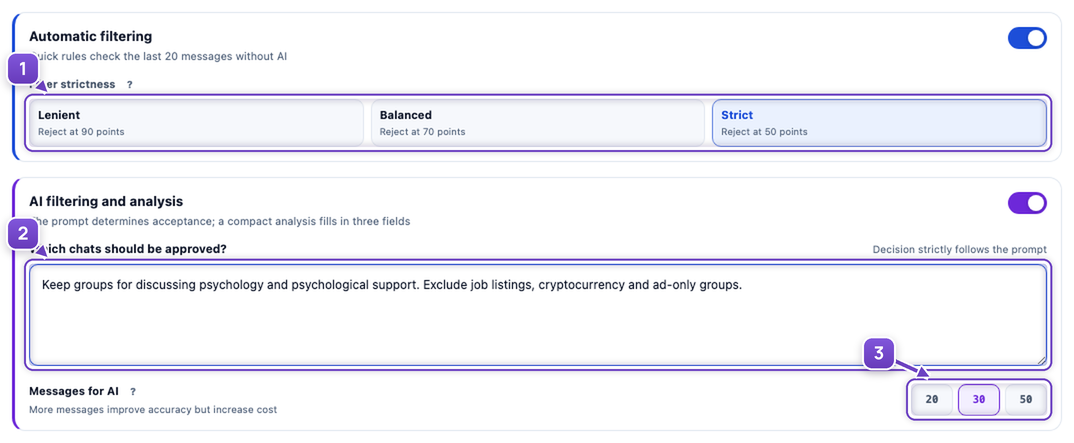
- Choose automatic-filter strictness. A stricter mode rejects groups with fewer signs of noise.
- Describe the topics and audience you want, plus what to exclude.
- Choose 20, 30 or 50 messages for AI. More context helps describe the group but uses more AI resources.
For example: “Keep groups for discussing psychology and psychological support. Exclude job listings, cryptocurrency and ad-only groups.”
Groups that do not allow posting are rejected before AI analysis.
Start the check
Choose the accounts and operating limits, then start. MegaTGAI checks the available groups and organizes results by status.
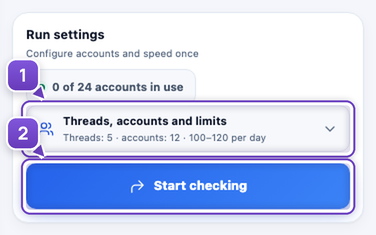
- Set accounts, pauses and limits for your task.
- Click Start checking.
Keep relevant communities
Open Matches. The table shows members, online users, last-message age, topics, languages and the AI decision reason. Use extra filters to narrow the list.
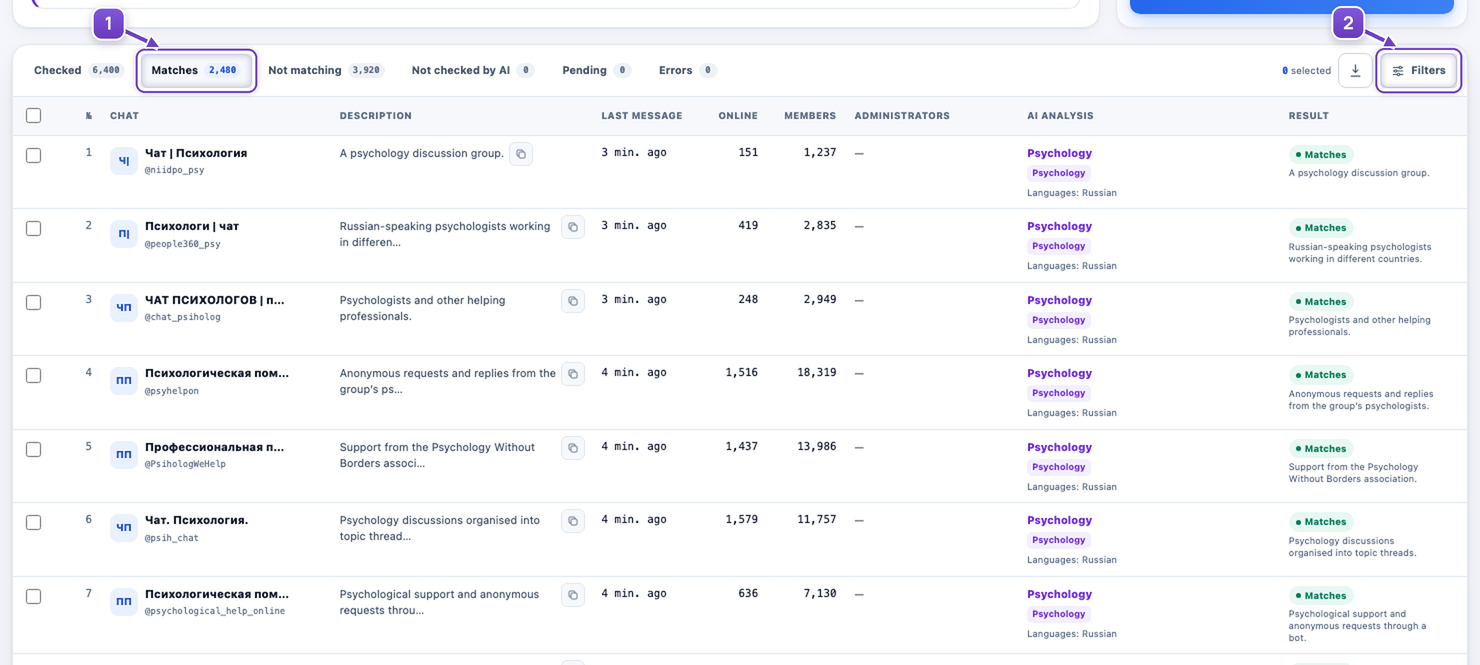
- View the matching groups: this example has 2,480 matches from 6,400 checked groups.
- Filter further by language, activity, size or topic if needed.
Export your selected list
Select rows or a range, then click Download. TXT is convenient for further work; CSV preserves selected fields for reviewing the list in a spreadsheet.
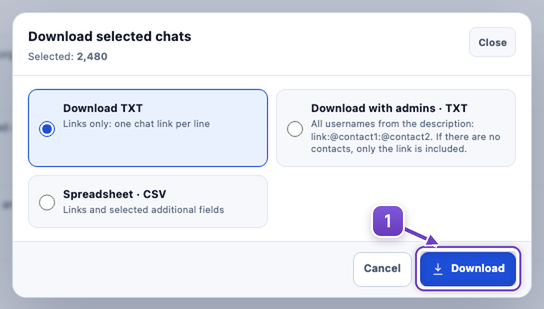
- Choose a format and download the selected groups. Include administrator contacts when available.
Screenshots show real public sources; processing totals and results are illustrative.