
MegaTGAI · Practical guide
Bulk Telegram account setup
Select the accounts, choose the changes you need and click Start. Names, photos, bios, stories and channels are all configured in one window.
Click a screenshot to enlarge it.
Select accounts → Edit
Open Accounts → Account profiles. Select the accounts—20 in this example—and click Edit. Enable what you want to change. Name is expanded in the screenshot; username, ordinary photos, bio, 2FA and stories are available here too.
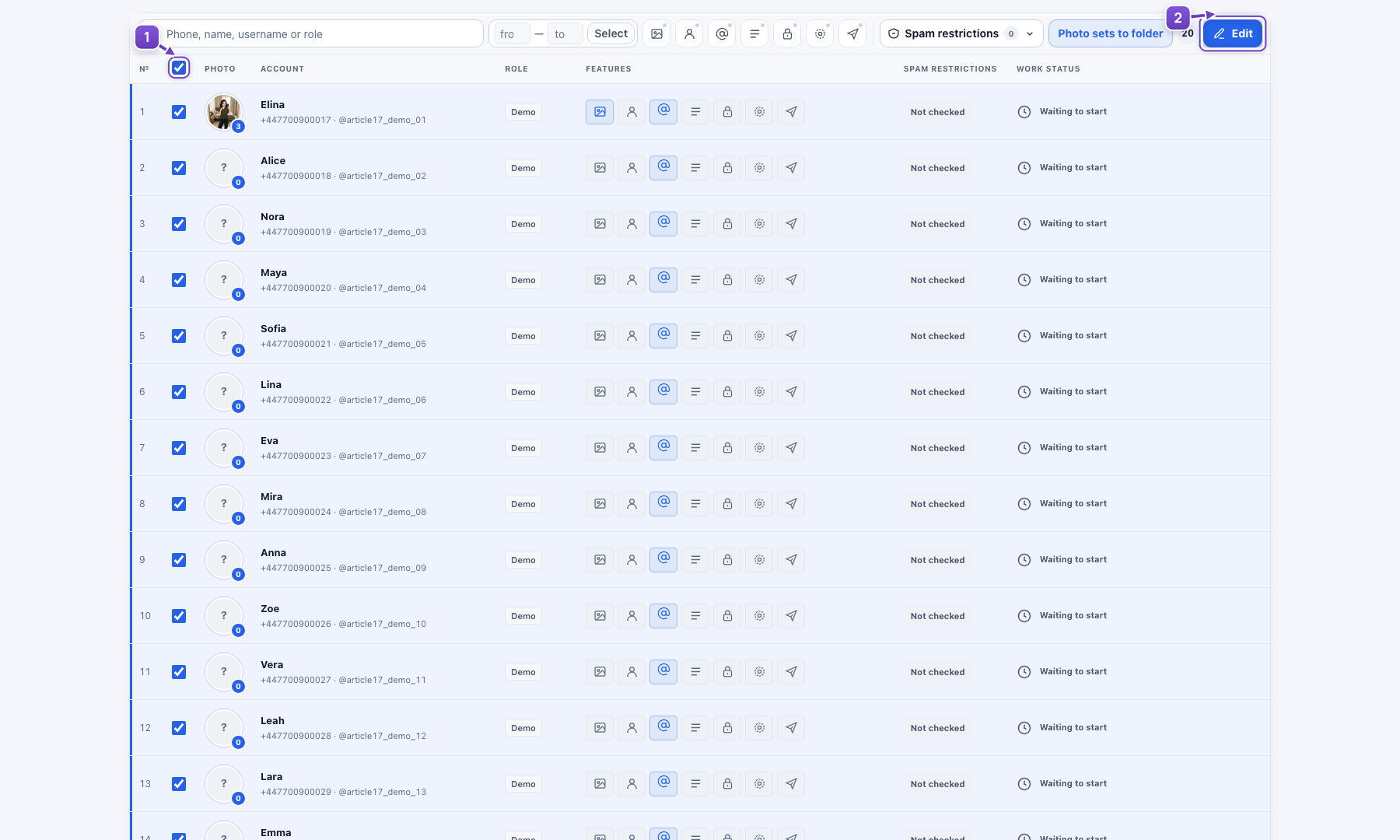
- 20 accounts selected.
- Click Edit.
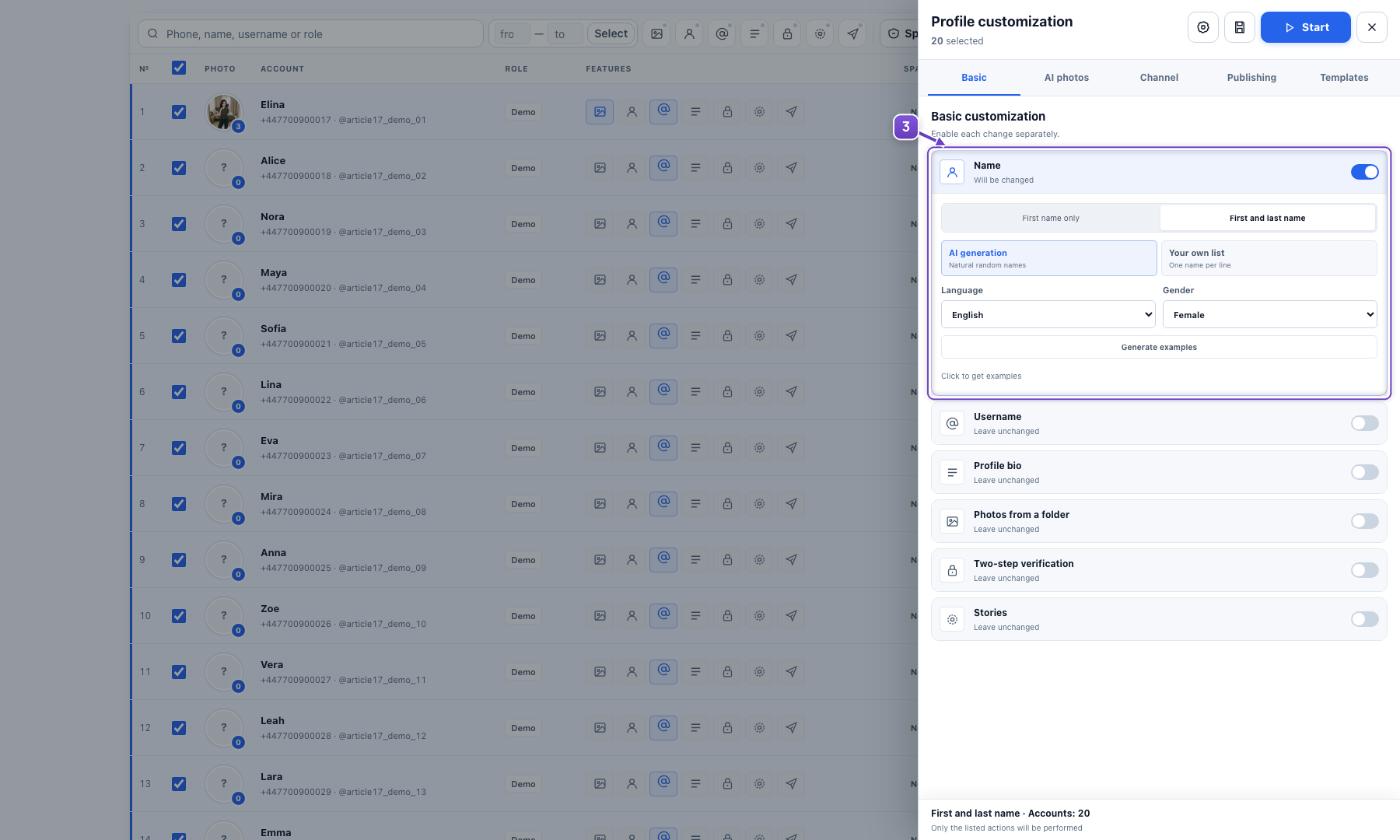
- Choose the required options. Name is expanded.
Choose AI photos
We recommend 3 photos per profile in different settings. Choose gender, age, appearance, region and scenes. This example selects anime style and the United Arab Emirates. You can create a new identity, continue the current profile’s appearance or save photo sets to a folder.
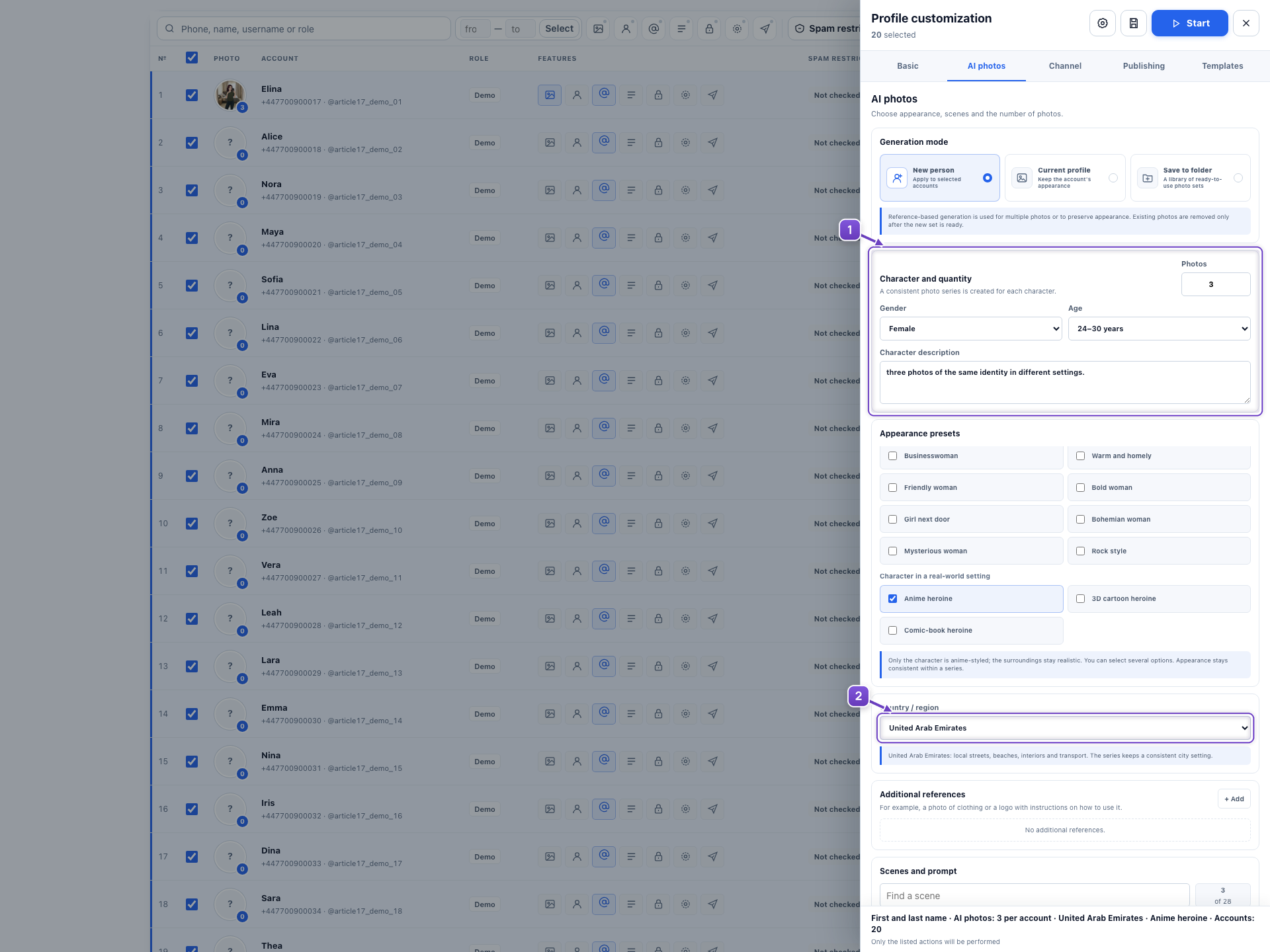
- Photo count and character settings.
- Anime appearance; UAE is the selected region.
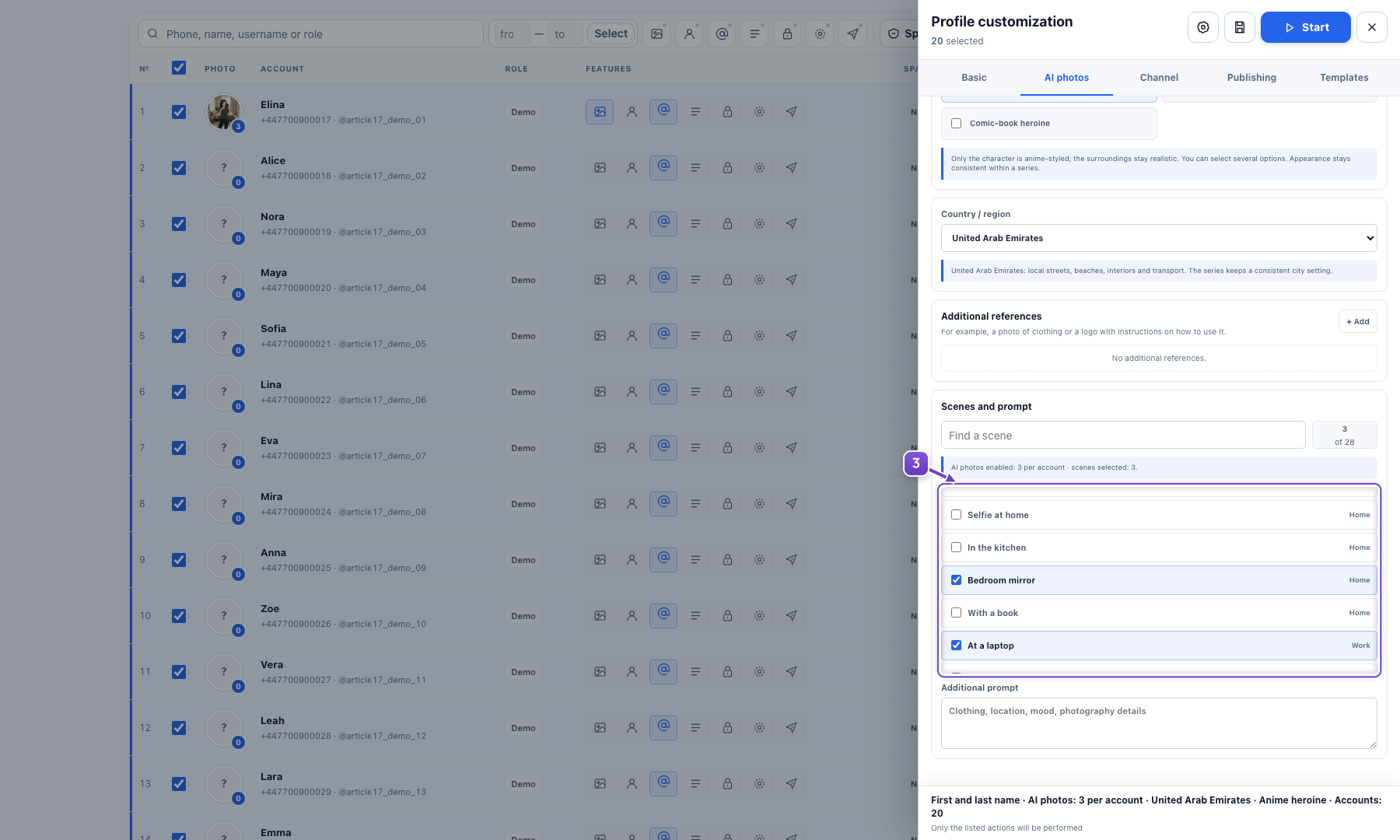
- Different scenes for one profile’s photo set.
Add a channel if needed
Use one reference channel for the selected accounts: AI copy creates variations with rewritten messages and links the channels to their profiles. Under Publishing, you can later post prepared content immediately or at a chosen time. Keep the app running for scheduled posts.
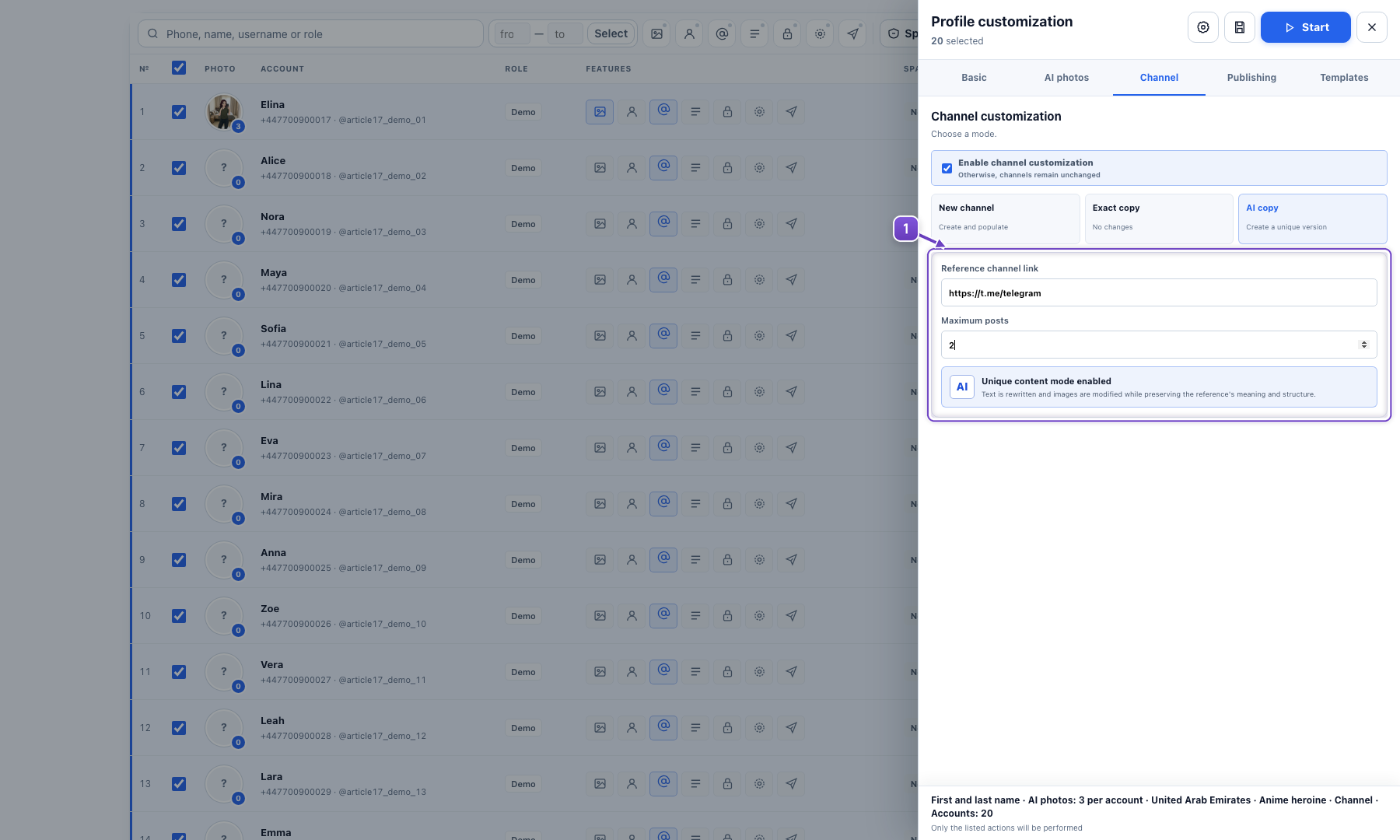
- Channel: a reference and AI copies for accounts.
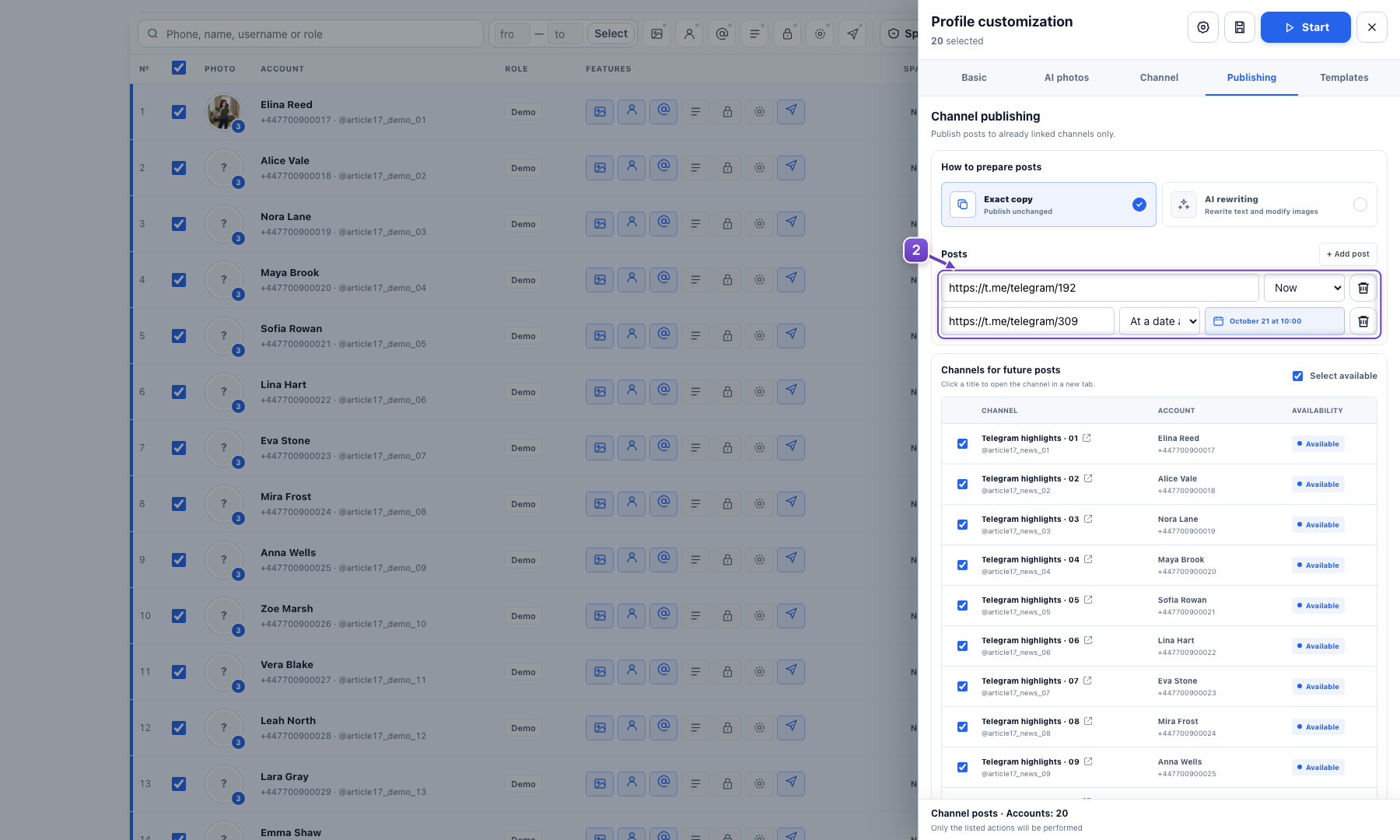
- Publishing: subsequent posts.
Click Start and see the result
The program sets up the selected accounts. Below is one profile example with three photos of the same identity in different settings.
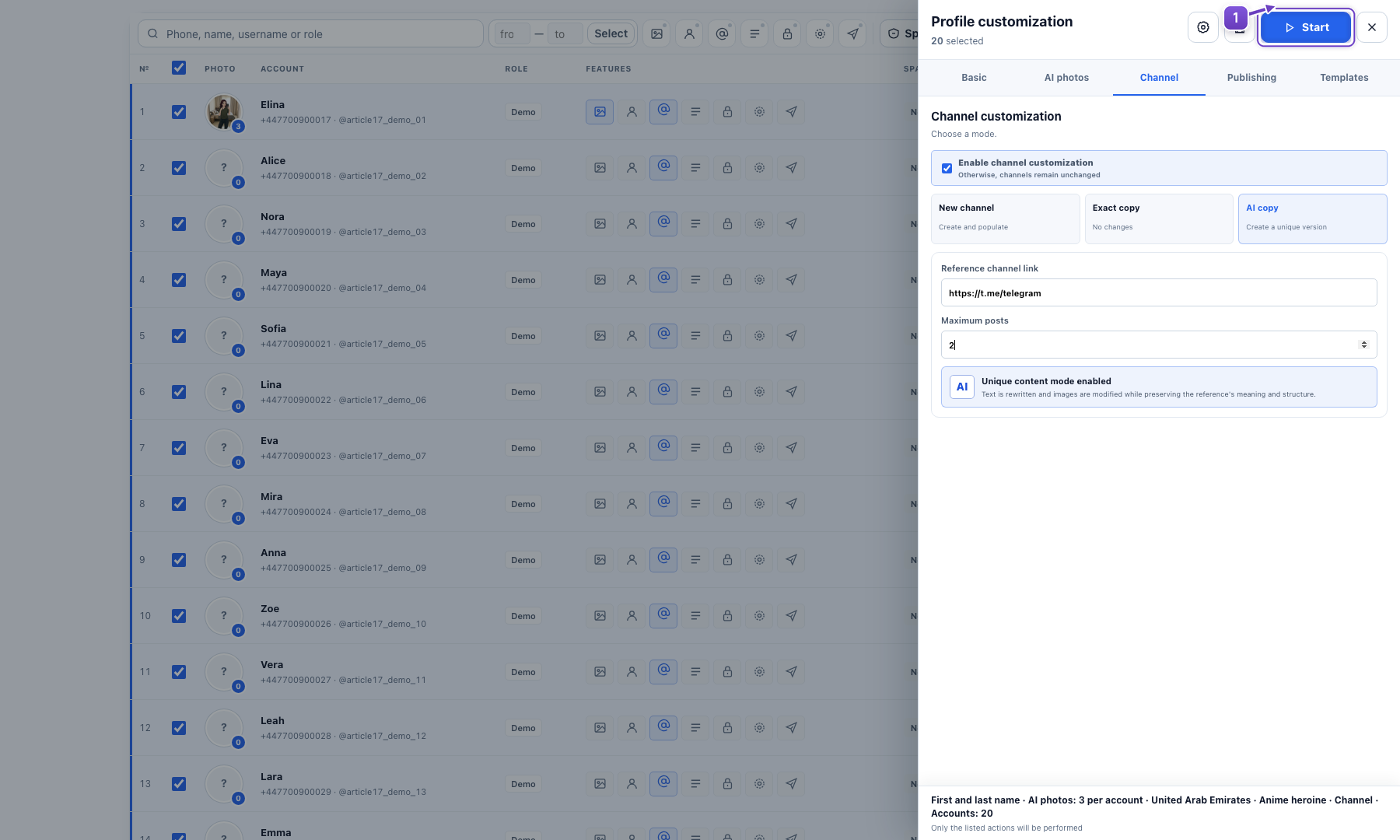
- Start for all selected accounts.
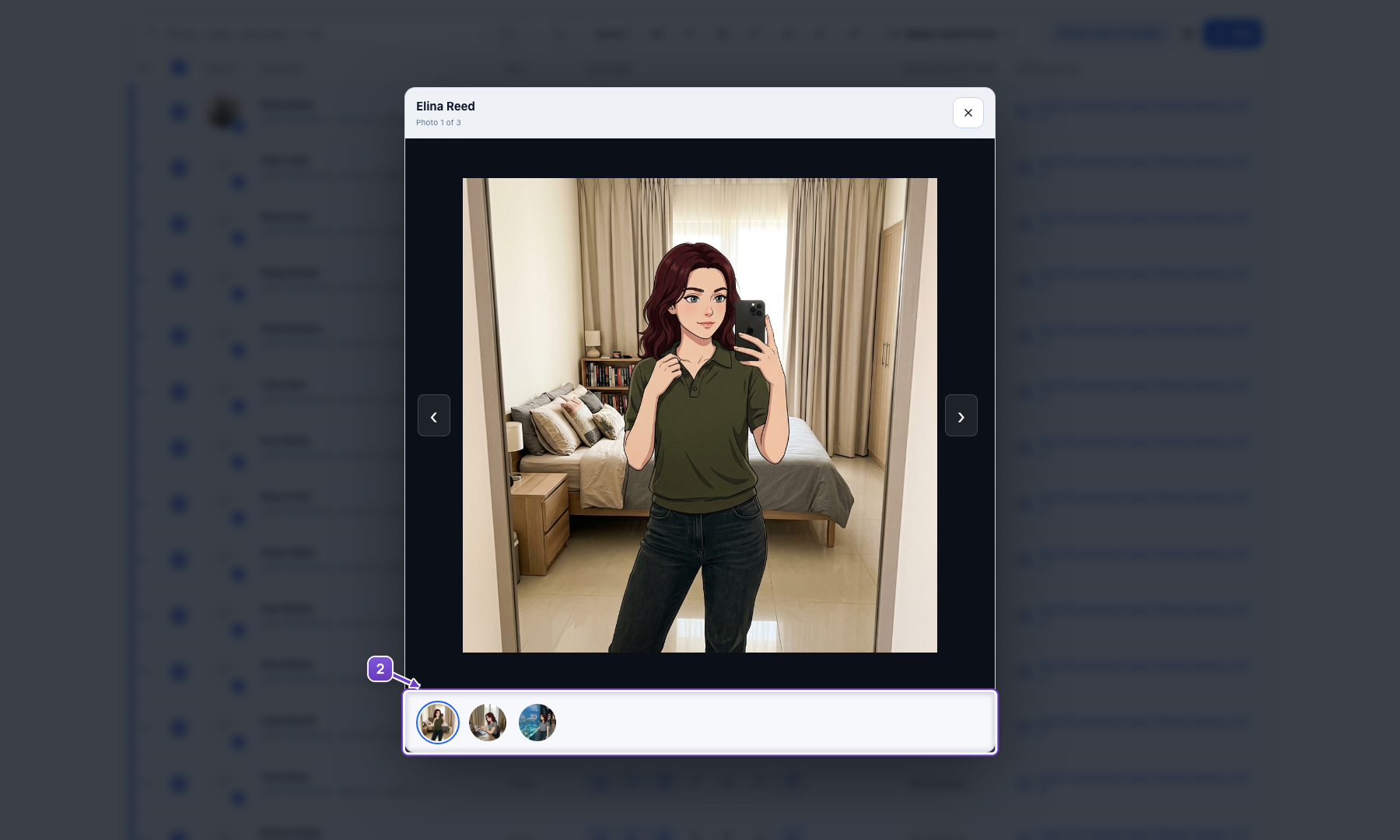
- A completed profile example: three photos.
Settings and accounts are demonstration data; the example reuses a saved AI photo set.