
MegaTGAI · Practical guide
Checking and moving Telegram accounts
Select accounts, add labels, check sessions and restrictions, then organize accounts into folders. Use the two panels in the Accounts menu.
Click a screenshot to enlarge it.
Selection, labels and checks
Open Accounts → Accounts panel, then Checks. There are 24 accounts here, with three selected. All three sessions are active, but the separate SpamBot check found a temporary restriction on one account. The other two are unrestricted.
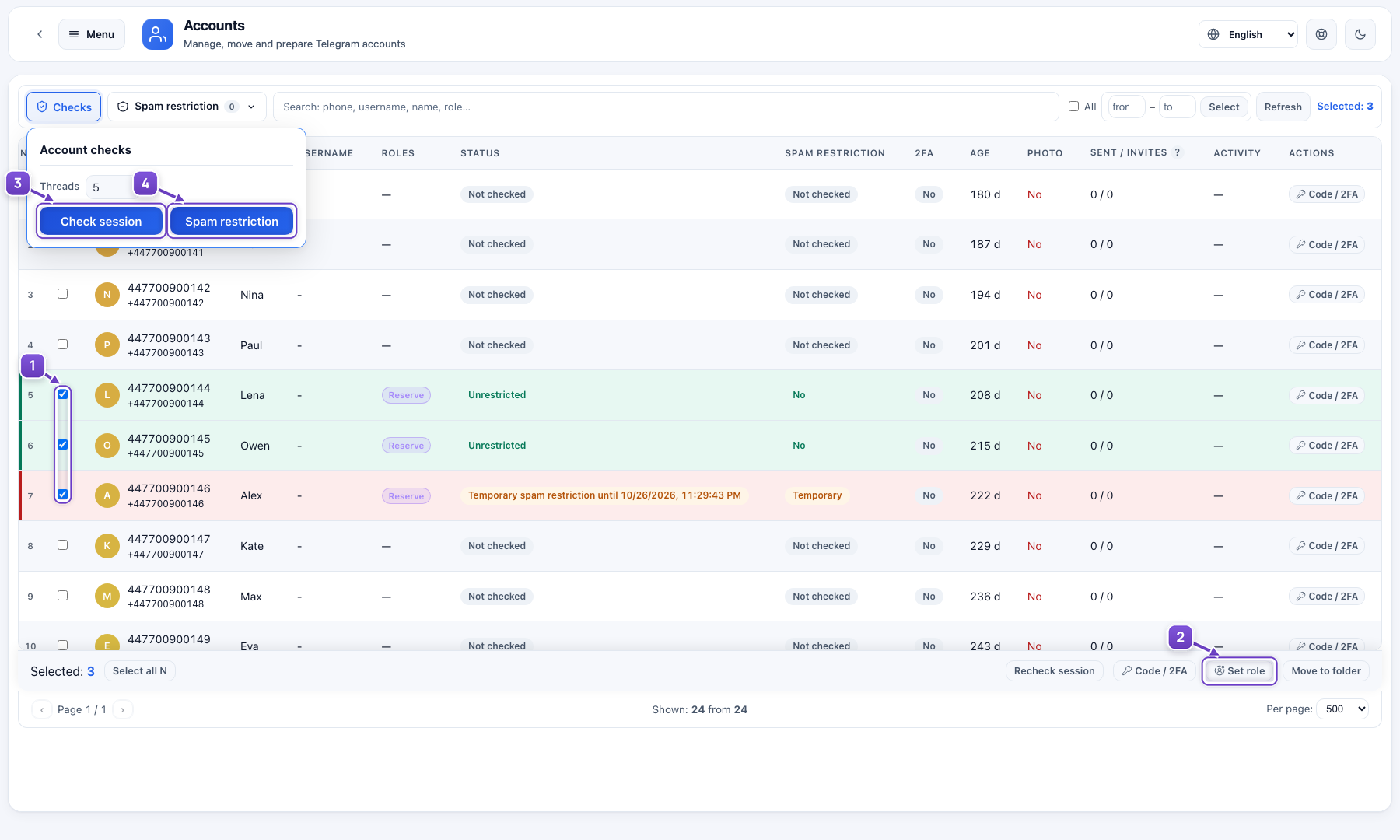
- Click the first row of the range, then Shift-click the last. Rows 5–7 on the current page are selected here.
- Set role: type Reserve, press Enter, then Add to selected. Roles are your own custom labels.
- Check session checks authorization.
- Spam restriction separately checks restrictions through SpamBot.
Move into a folder
Open Accounts → Move accounts. Select the three accounts again and click Remove from working accounts. The screenshot shows Reserve as the destination. After confirmation, 21 accounts remain in Working accounts and 9 are in Reserve; labels and check results are preserved.
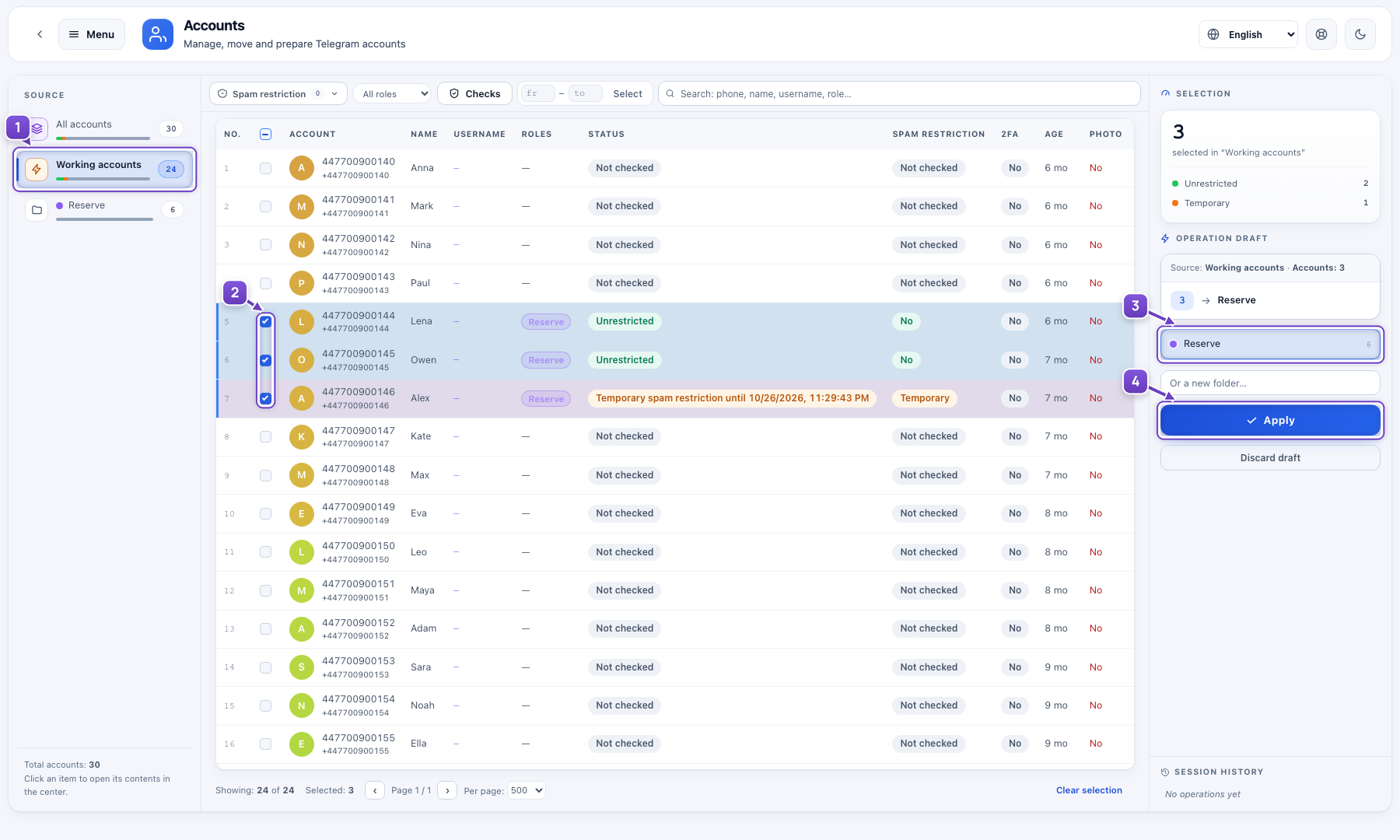
- Working accounts means accounts in the root accounts/ folder, not running tasks.
- The three accounts selected for moving.
- The destination folder, Reserve.
- Apply opens the confirmation. Confirm, then check the result in the history.
The real interface uses 30 fictional accounts. Checks and moves run against an isolated model.