
MegaTGAI · Step-by-step setup
How to launch Telegram invitations: group, bot and accounts
The first steps depend on your group: connect your own through a bot, or select a group already created by the program. Choose your option. Both then follow the same account, audience, group-plan and launch steps.
Click a screenshot to enlarge it.
- Why does inviting need a bot?
A quick explanation of administrator appointments, replacements and automatic group setup.
Which group are you connecting?
Both setup options are shown below, followed by the shared launch steps.
Connect your own group
Enter the group and select an existing bot
In the Invites menu, open Groups → Your groups and paste your group link. Click Choose an existing bot, tick the bot and copy its @username with the adjacent button. Use the bot you already created.
- If you need a bot: bot creation
Created bots appear in the program’s shared list.
- If you need a new group
Group and channel creation has its own guide.
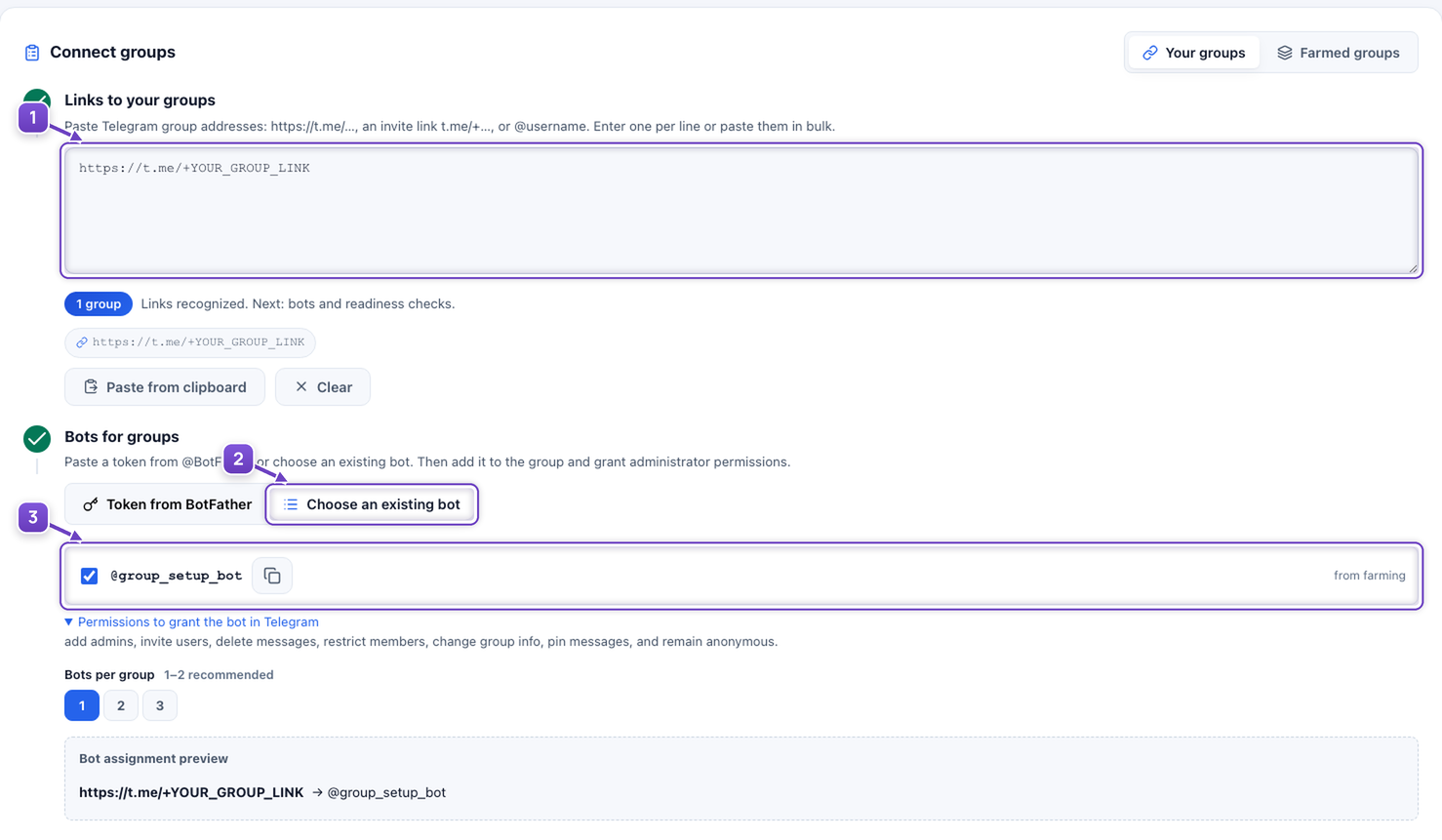
- Your group link.
- Choose an existing bot.
- Select the bot and copy its username.
Open group administrators in Telegram
Open your group from its owner account. Tap the group name, then Edit and Administrators.
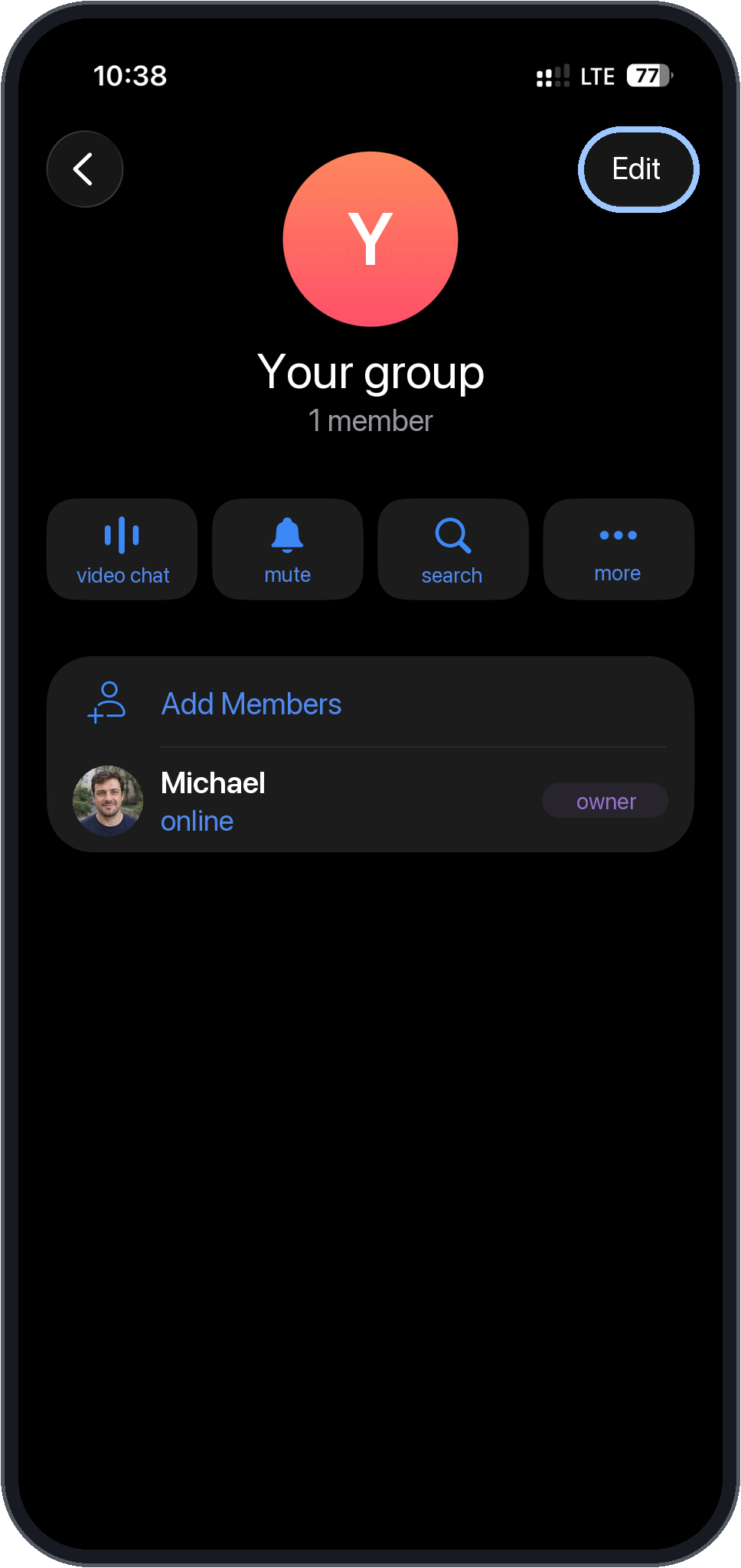
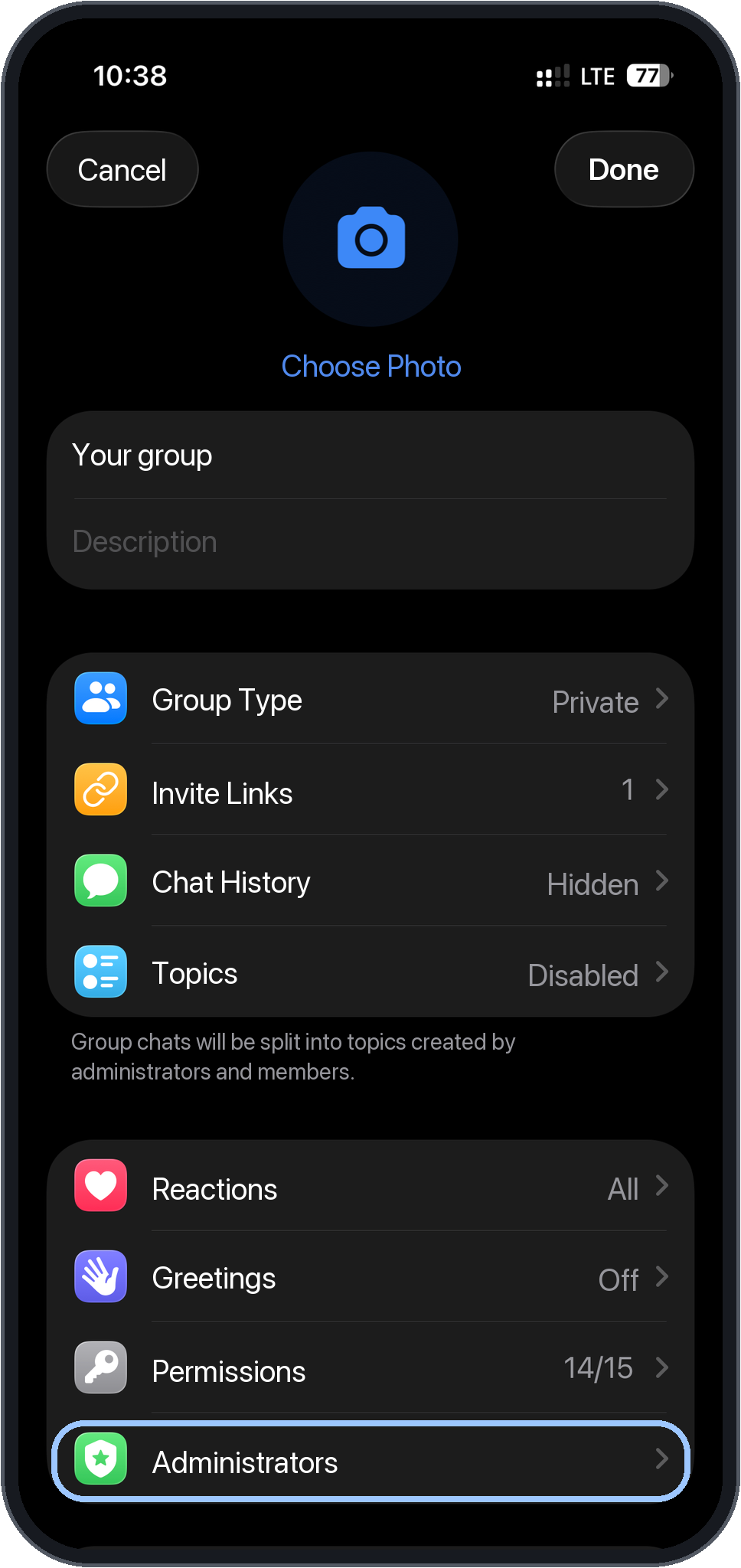
The light outline shows where to tap. Click a phone for a closer look.
- Open group editing.
- Open the administrator list.
Find the same bot by username
Tap Add Administrator and paste the username of the bot selected in the program. Open the search result. The bot identity is replaced in this teaching example; use your own bot’s username.
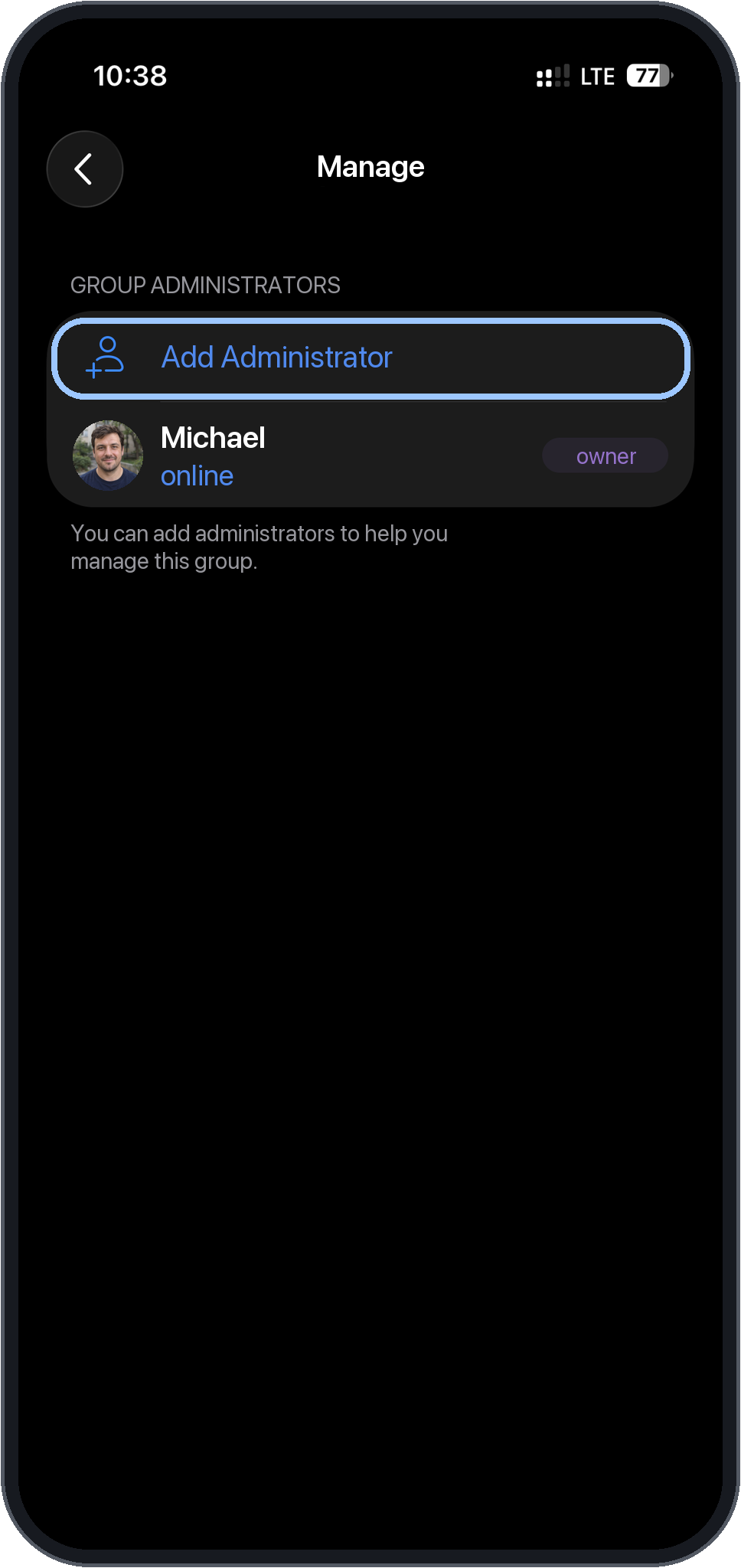
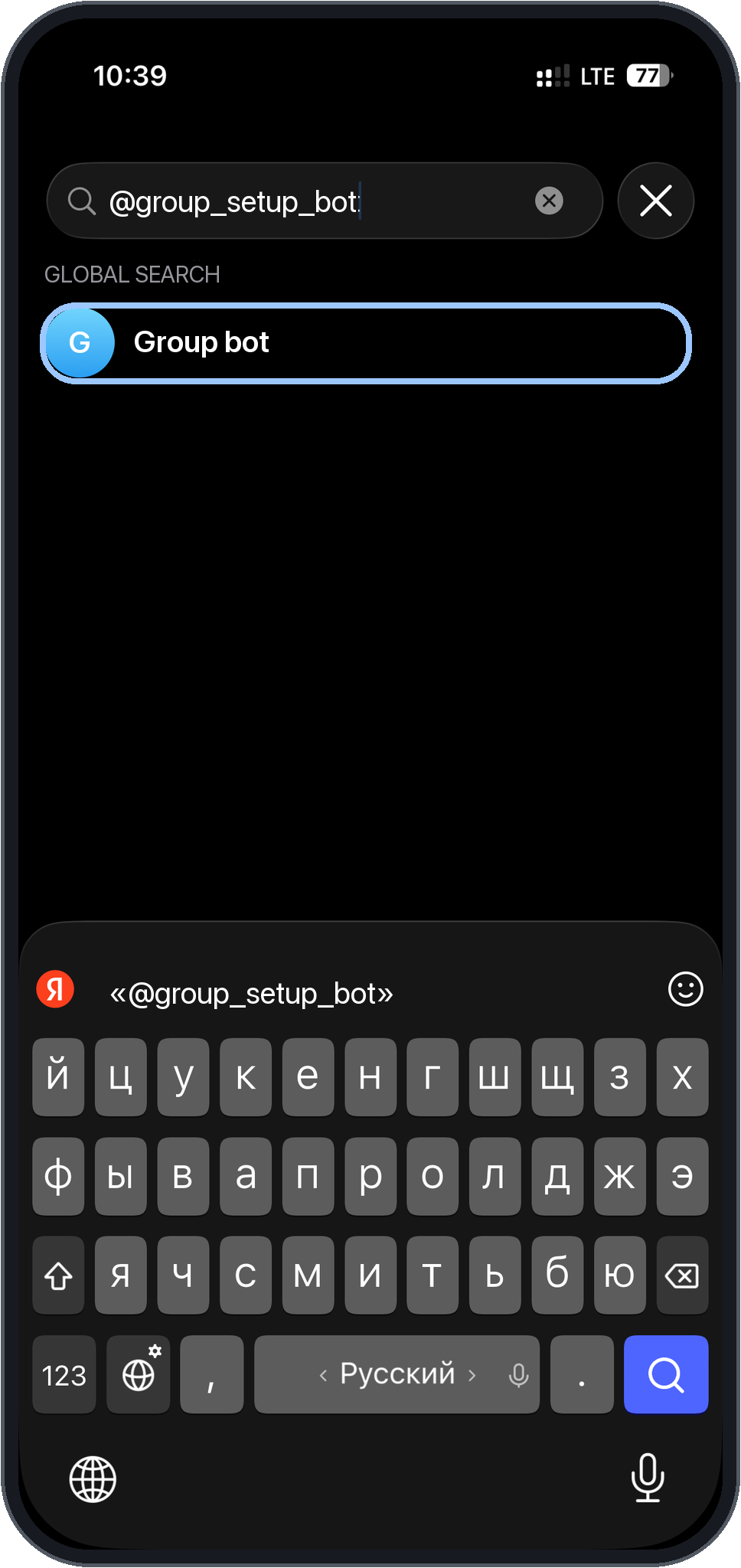
The light outline shows where to tap. Click a phone for a closer look.
- Add an administrator.
- Find the selected bot, not another bot with a similar name.
Enable every permission and add the bot
Enable every switch, including Add New Admins. Tap Add and confirm that the bot appears in the administrator list. Adding it as a member is not enough: the group owner grants administrator permissions manually.
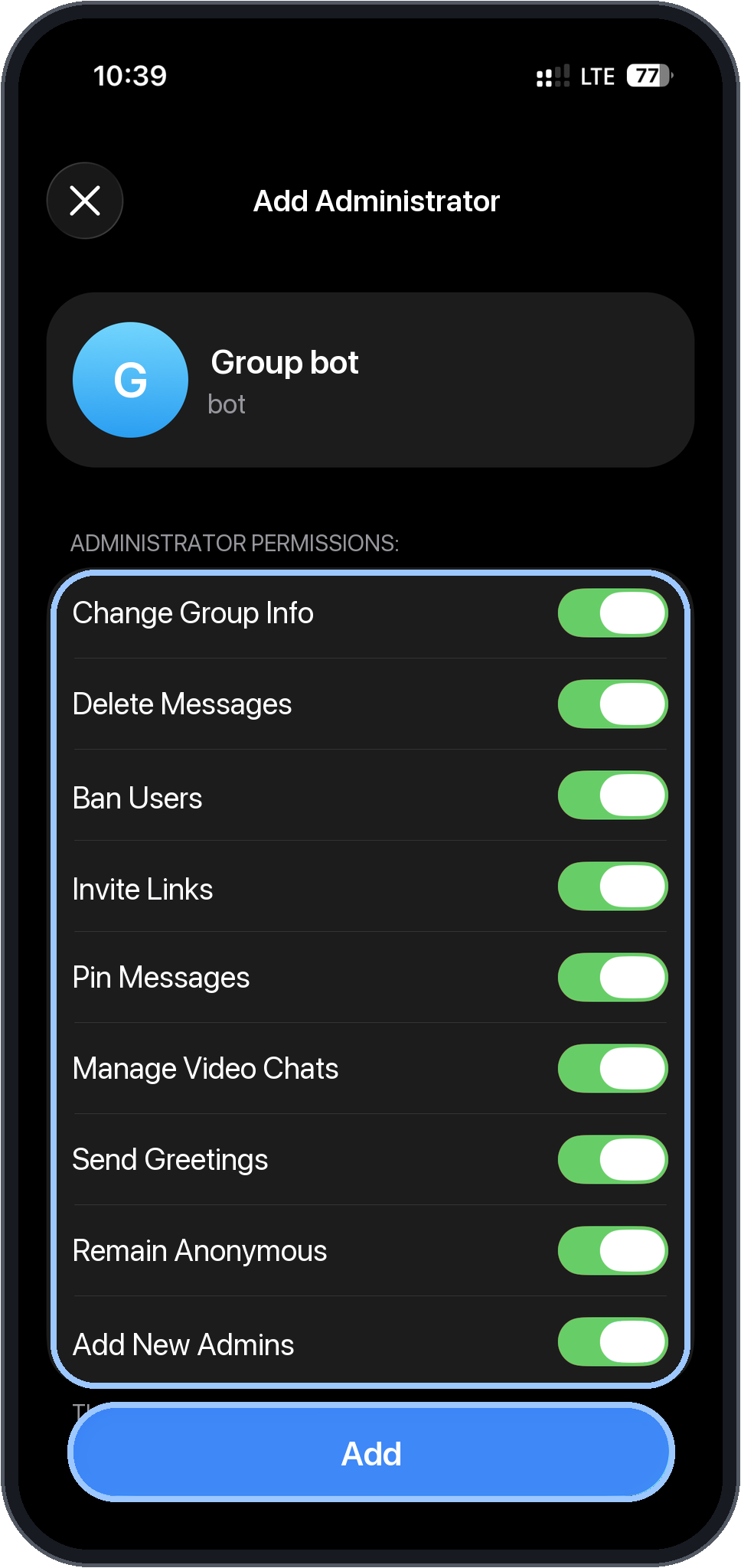
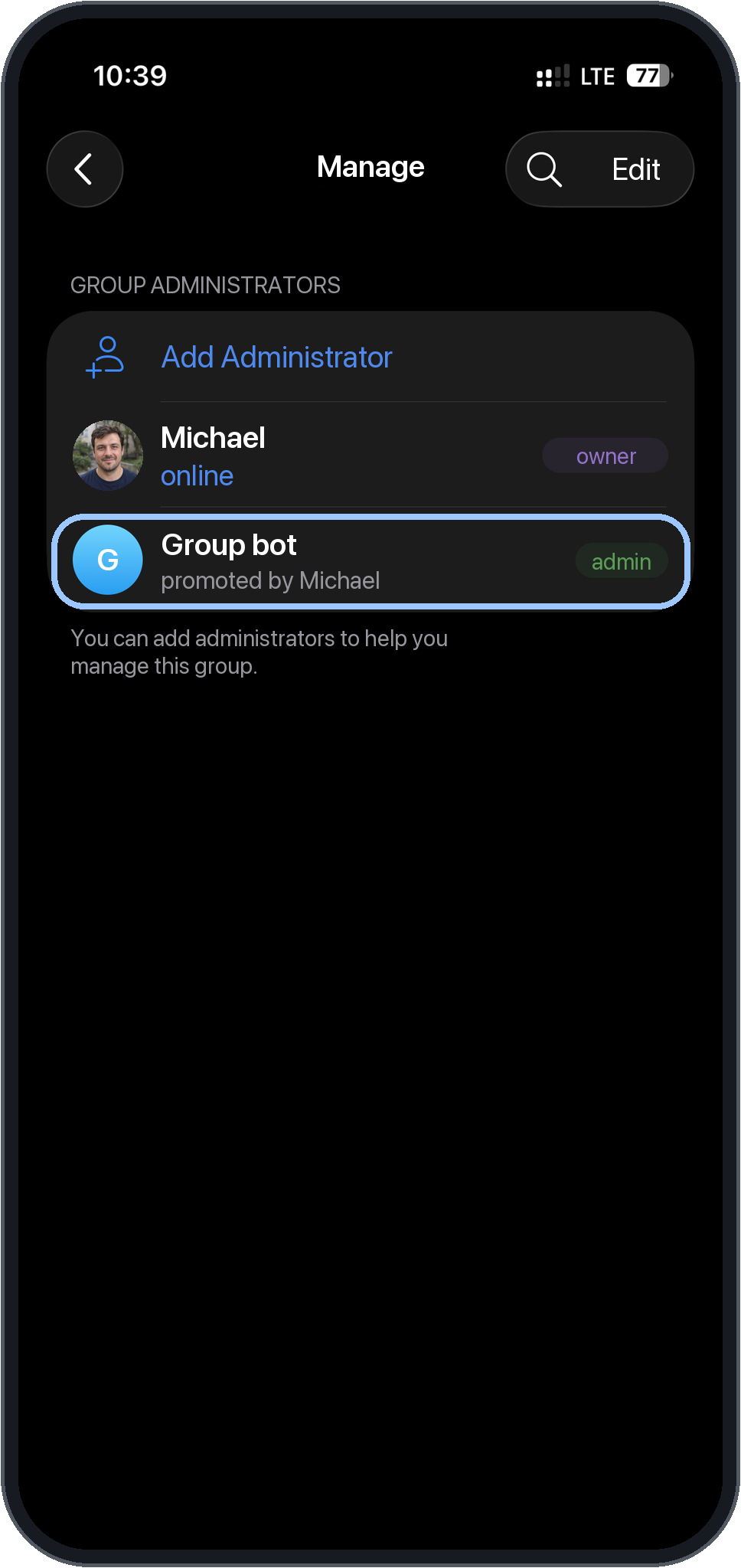
The light outline shows where to tap. Click a phone for a closer look.
- All permissions are enabled; confirm with Add.
- The bot appears in the administrator list.
Return to the program and check the group
On the Groups page, click Check 1 group. Wait for confirmation of the group, bot and permissions. A successful check opens the dashboard. We will start inviting after choosing accounts, loading the audience and setting limits.
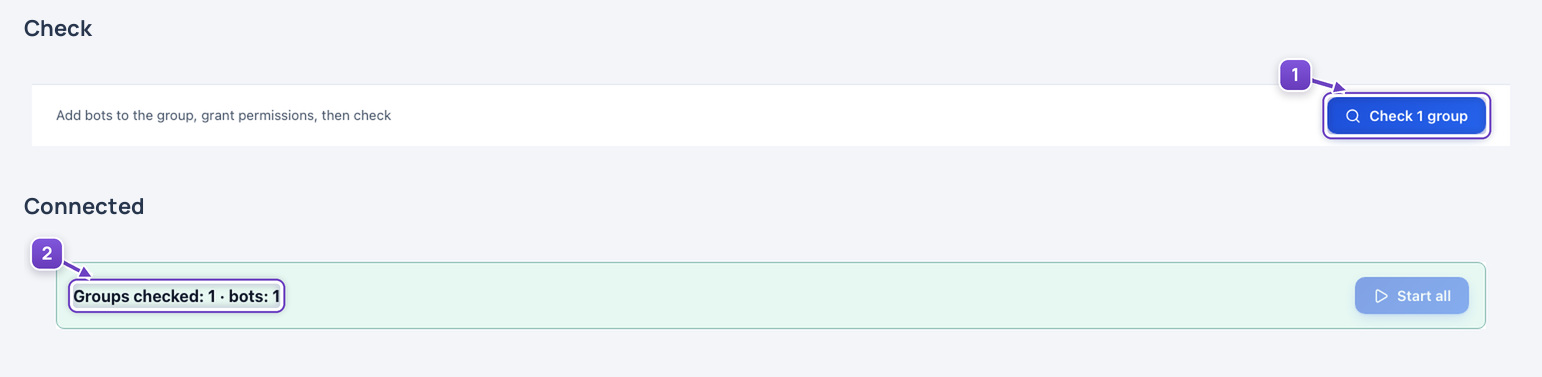
- Check the group after granting permissions manually.
- Successful check result.
Connect a group created in the program
Select and connect an existing group
In the Invites menu, open Groups → Farmed groups. Tick the group you need, or enter how many of the oldest to take, then click Connect. You do not need to appoint a bot manually: at the first start, the program prepares the bot and permissions through the created group’s owner account.
- How to create groups in advance
If the farming list is empty.
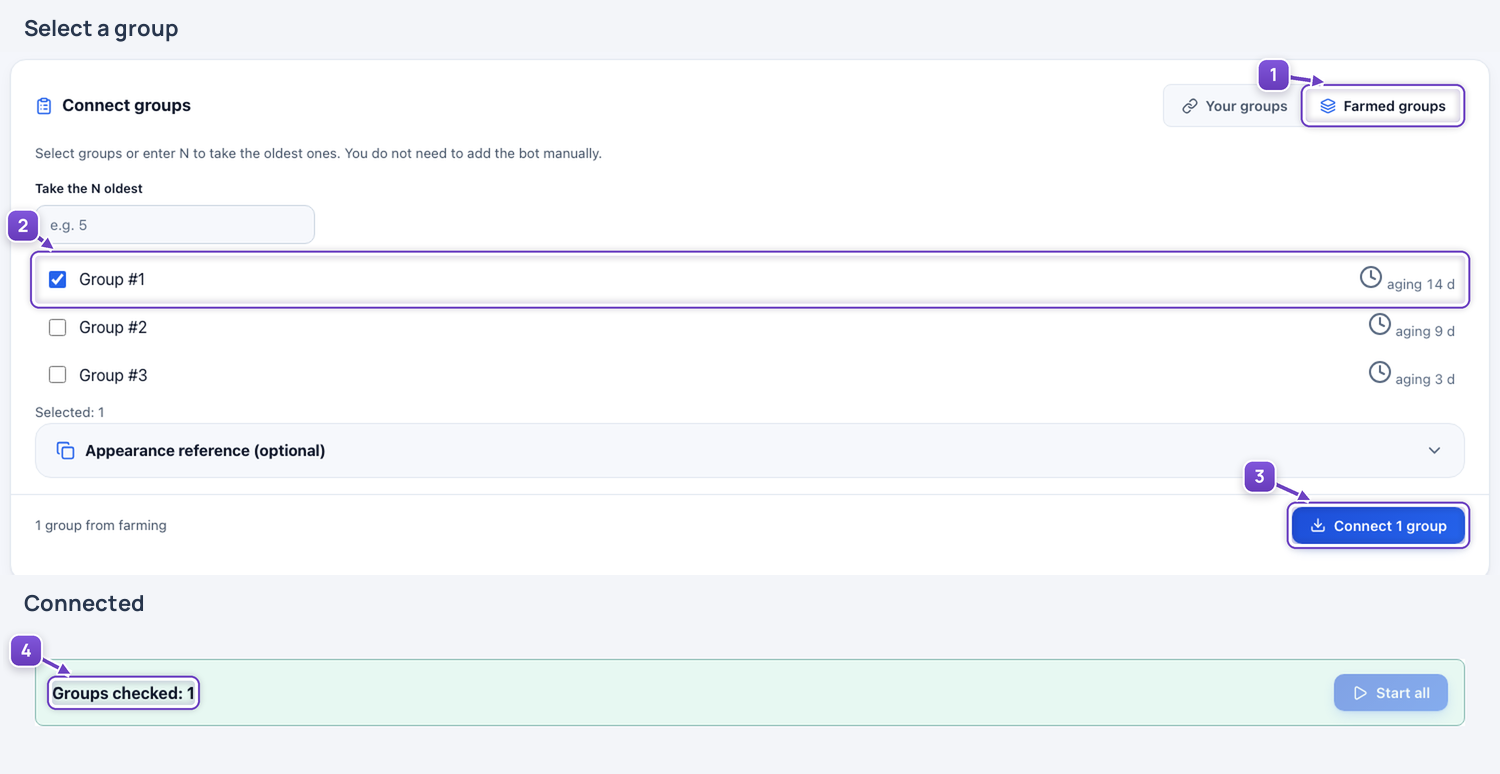
- Choose farmed groups.
- Tick the group you need.
- Connect the selected groups.
- The group is connected—continue with the shared setup.
The remaining steps are the same for both options
Choose accounts, load your audience, set the group’s plan and start inviting.
Choose this group’s account source folder
On the dashboard, click the accounts icon beside Start for the group. Select a folder—Invites with 32 accounts in this example. Main administrators, workers and reserves will come from that source. Choose it before starting; each group can use a different folder.
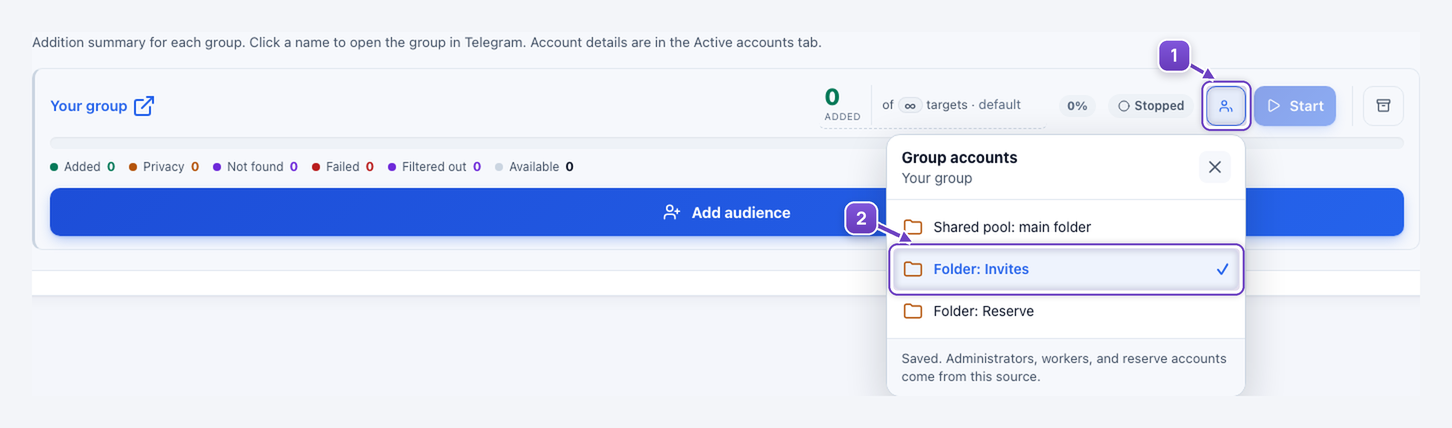
- Open this group’s account selector.
- The selected Invites folder.
These folders sit inside the accounts directory in your installed program’s folder. For example: MegaTGAI/accounts/Invites/. Create a subfolder there for the required set of accounts, then select it in the program.
Load an audience into the group’s database
Click Add audience on the group card to open Database. Check that the correct group queue is selected. Paste your prepared usernames, t.me links or phone numbers, one per line, and click Add. This example imports 1,000 records.
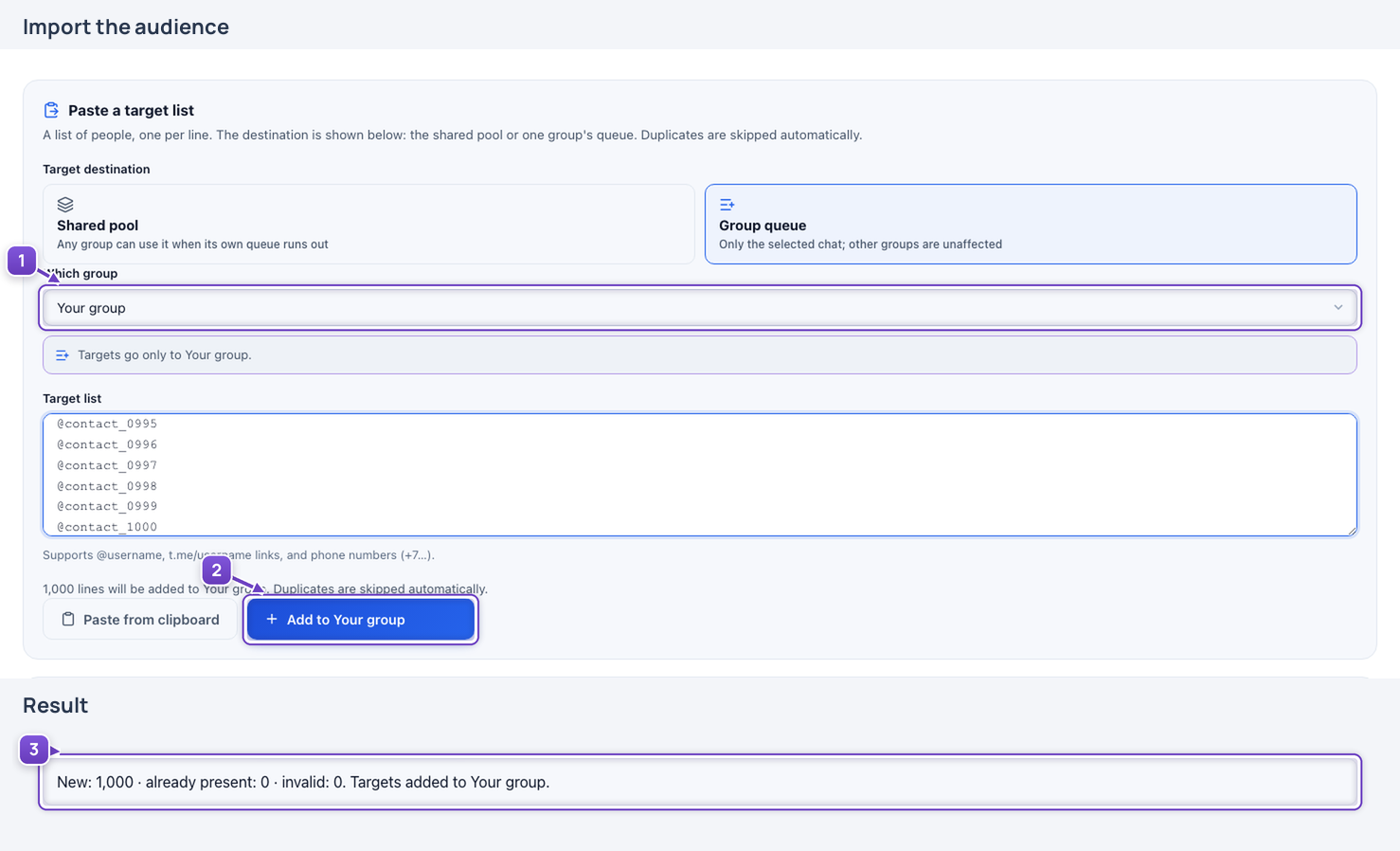
- The group receiving the audience list.
- The list and its Add button.
- The number of imported records.
Set the plan and repetition on the group card
Click the ‘0 added out of ∞ targets · default’ counter on the group card to open Group targets. Choose Once for a single run, or Daily for repetition. Set the overall maximum, additions per day and the interval before restarting. This example uses 1,000 overall, 120 per day and a 24–25-hour restart interval.
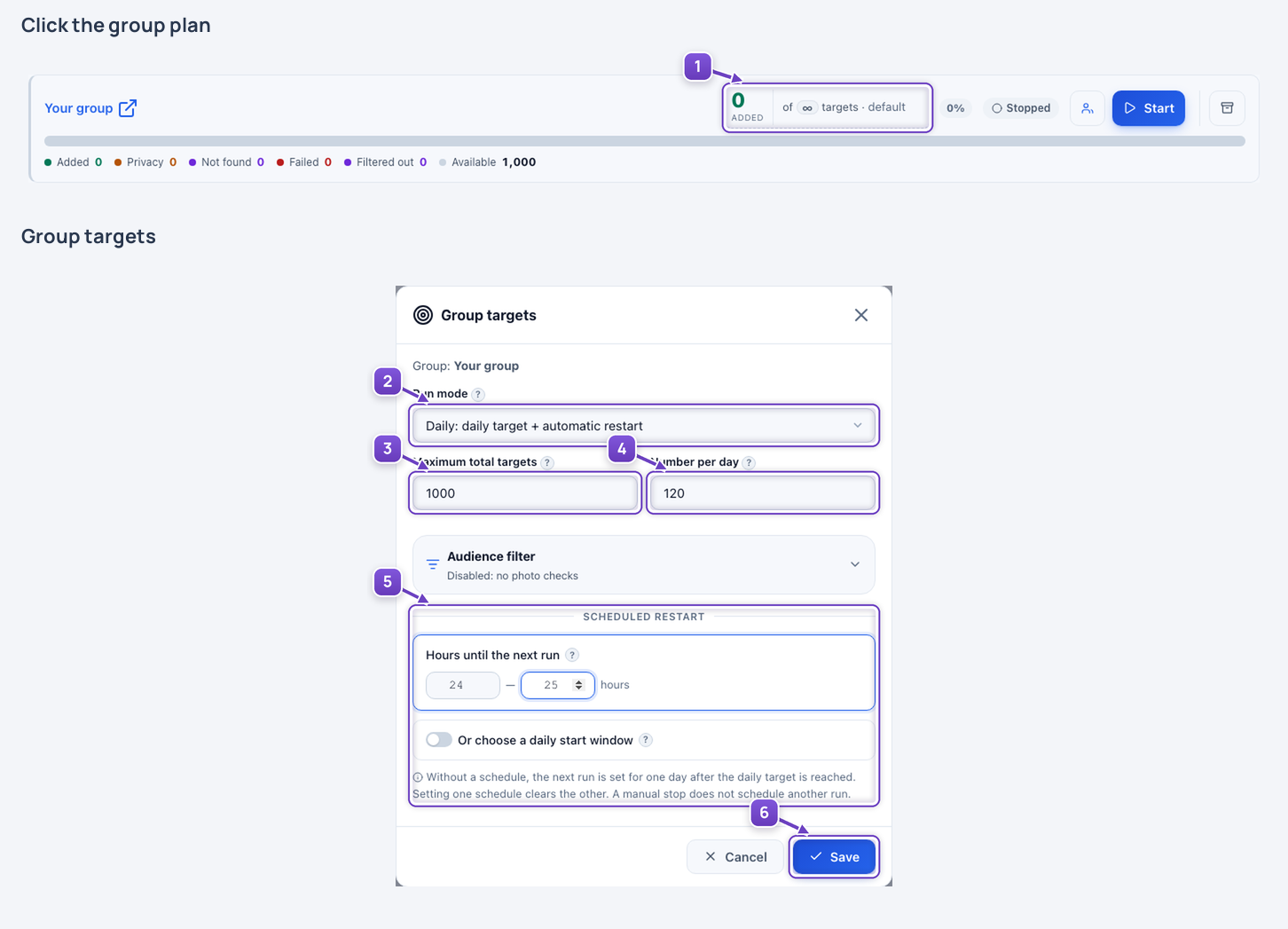
- Click the group’s plan to open its settings.
- Once or Daily mode.
- Overall maximum: 1,000 people.
- This group’s daily target: 120 additions.
- Restart after 24–25 hours; a time-of-day window is also available instead.
- Save the plan for the selected group.
An automatic restart is scheduled after the daily target is met. A manual stop does not schedule another run.
Start and monitor the result
Return to Dashboard, check the source folder, audience and group readiness, then click Start on its card. Open Active accounts from the menu to see the main administrator and workers. Counters show additions and the remaining audience; the group card provides the Stop control.
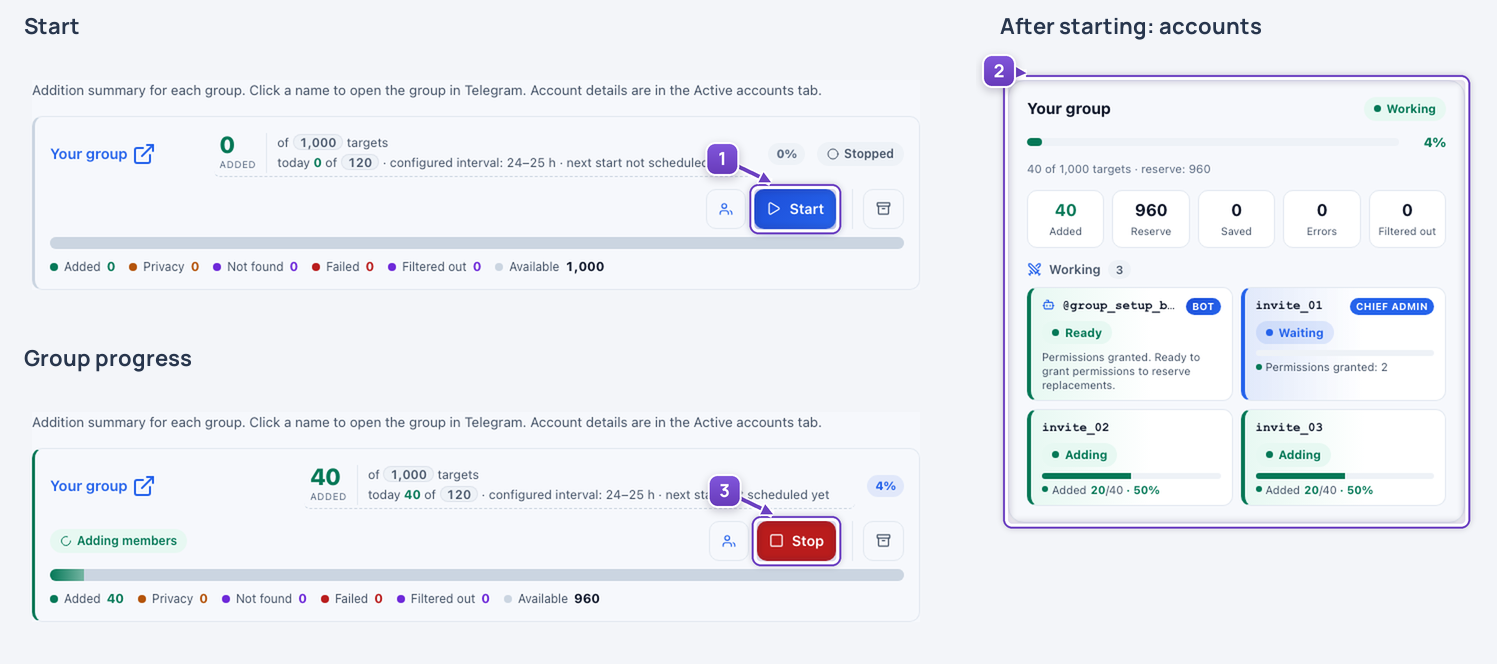
- Start the selected group.
- Assigned accounts and execution state.
- Stop control and progress counters.
The Telegram walkthrough uses real phone screenshots with the owner and bot anonymized. The group link, accounts, audience and program counters are staged examples. No real invitations were sent.