
MegaTGAI · Reading guide
Getting started with MegaTGAI
On your first visit, click “Open Assistant”. It will help you get the application ready.
After setup, choose a section below. You can skip anything you do not need; all articles open in a new tab.
Assistant
The Assistant is simple enough that you will not need a separate manual. Follow its on-screen prompts to complete basic AI, proxy and account setup for your next task.
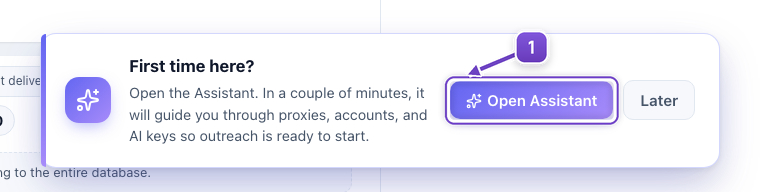
- Click “Open Assistant” in the “First time here?” invitation.
Audience collection
Menu: Preparation → Audience. Choose a source: finding communities, collecting people and checking an existing list are separate tasks.
- Channel search with AI
Channel search: find relevant communities when you have no source list.
- Collect and filter an audience
From chats and channels: collect accessible members and filter by messages.
- Check a chat list
Chat checker: remove unsuitable communities before using your list.
- Members of your channel
From your account: collect channel members when you have administrator access.
- Chat members without a link
From your account: collect people from a chat your account already belongs to.
- Contacts from existing conversations
From your account: export contacts from your existing private conversations.
Accounts
Menu: Preparation → Accounts. Set up profiles, select working accounts, check them and move them between folders.
- How to choose and where to buy Telegram accounts
Where to buy Telegram accounts and how to choose the right type for your task.
- Account profiles
Account profiles: prepare your profile and linked channel before conversations.
- Checking and moving Telegram accounts
Accounts panel and Move accounts: selection, roles, session checks, spam restrictions and transfers.
- Residential proxies
Proxies: choose and add connections before your accounts start working.
Messaging
Under Messaging, start with Funnel. TGStat and outreach to past conversations are configured at the first funnel stage.
- Launch your first campaign
After basic setup: move from an audience and funnel to launch.
- Message features
While building a funnel: add names, context, follow-ups and employee notifications.
- An offer for each company
For business outreach: tailor the offer and hand interested prospects to a specialist.
- A/B testing messages
Once two variants are ready: compare them against your chosen goal.
- TGStat leads
At the first funnel stage: find published requests and reply privately.
- Outreach to past conversations
At the first stage: select suitable past contacts and introduce a new offer.
- All conversations in one CRM
Conversations panel: read replies and join customer conversations.
Invites
Menu: Growth → Invites. Inviting adds people to your groups; appearance and follow-up posts are separate tasks.
- Create bots
Bot farming: prepare bots for your group workflow.
- Create groups and channels
Group farming: create communities before adding content and inviting people.
- Group management with AI
For an overview: understand appearance, content preparation and publishing.
- Launch invitations
Groups: choose a group, accounts, audience and daily invitation target.
- Why invitations need a bot
Before admin-based inviting: understand bot, administrator and worker roles.
- Automatic group appearance setup
After connecting groups: apply a reference, permissions, history and cleanup bot.
- Publish posts across groups
Follow-up posts: publish selected posts now or on schedule.
Communities
Menu: Growth → Communities. Here your accounts join existing chats and channels and participate in selected communities.
- AI commenting
Comments: reply to fresh posts and draw interest to your profile.
- Recommendation sequences
Recommendations: arrange a service discussion between accounts with different roles.
- Messaging in chats
Messaging: group chats by their rules and choose one pass or repetition.
- Join groups
Join chats: add your accounts to selected communities and check the result.
The screenshot shows the actual interface with illustrative first-visit data.