
MegaTGAI · Practical guide
Bulk Telegram group publishing after inviting
Send one set of posts to your existing groups immediately or on schedule. This has its own section in the inviting module: Follow-up posts.
Click a screenshot to enlarge it.
Open Follow-up posts and add your content
Choose Follow-up posts in the inviting menu. Add public links to prepared posts in the form t.me/channel_username/post_number. Set each one to Now or choose a date and time in the calendar.
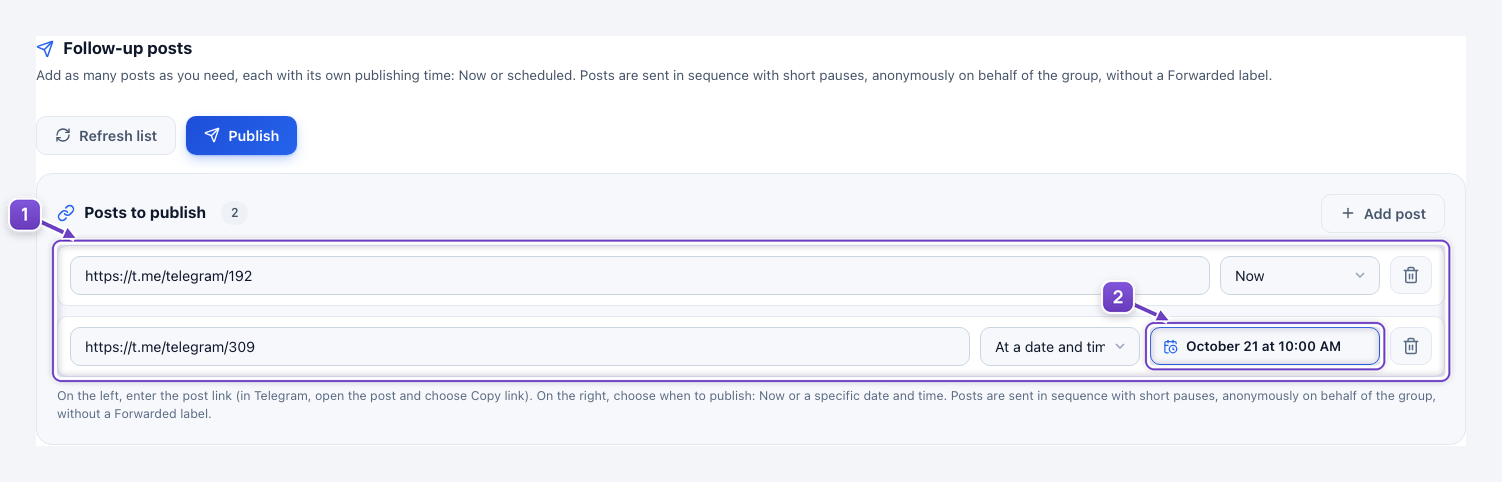
- Public post links; the screenshot uses accessible Telegram News posts.
- Each post’s timing: immediately or on schedule.
Select groups and publish
Select the groups and click Publish. Every selected group receives the full list, posted as the group without a forwarded label. In this example, one post goes out now and the second is scheduled for the next day in all 20 groups.
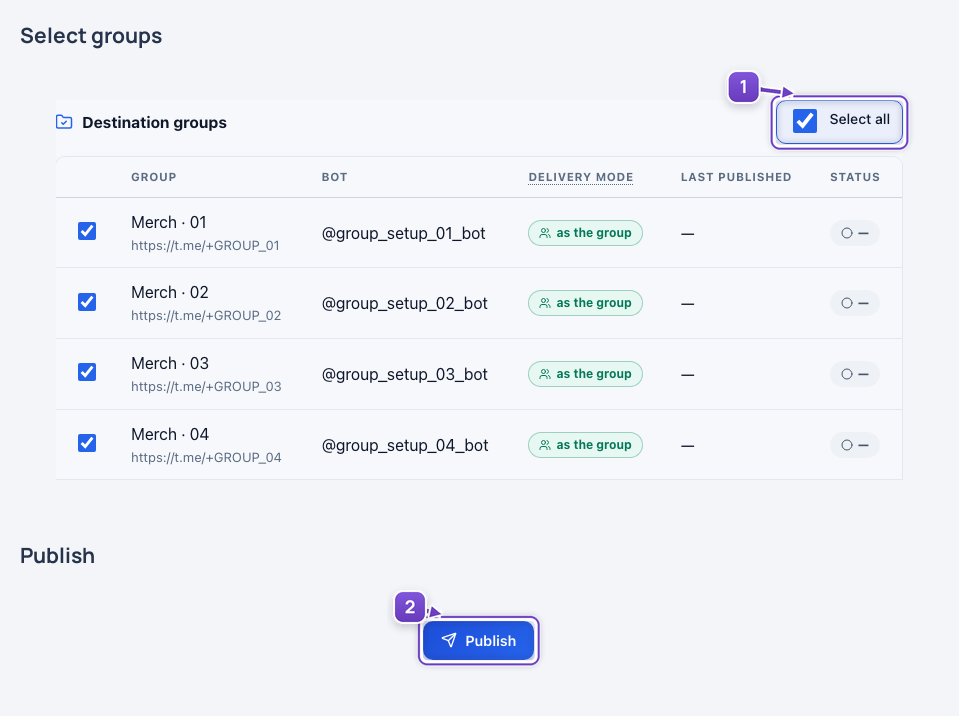
- Recipient groups; you can select all.
- Publish the prepared list.
For the next batch, add new material and set its timing. Prepare the text, images and links in advance.
The real interface uses isolated data: 20 fictional groups, one immediate post and one scheduled post. No real posts were published.