
MegaTGAI · Practical guide
Inviting: automatic Telegram group setup
Prepare one reference and the program sets up the selected groups: name, description, avatar and initial posts. It also applies member permissions and history settings, and automatically adds a bot to remove service messages.
Click a screenshot to enlarge it.
- First connect your groups for inviting
Your own group or one already created in the program.
Save the reference group
Prepare the name, description, avatar and initial posts. The reference history must be visible to new members. In Invites → Groups, enter the reference link and its bot’s token. That bot only needs regular membership in the reference group. Save to see its status below.
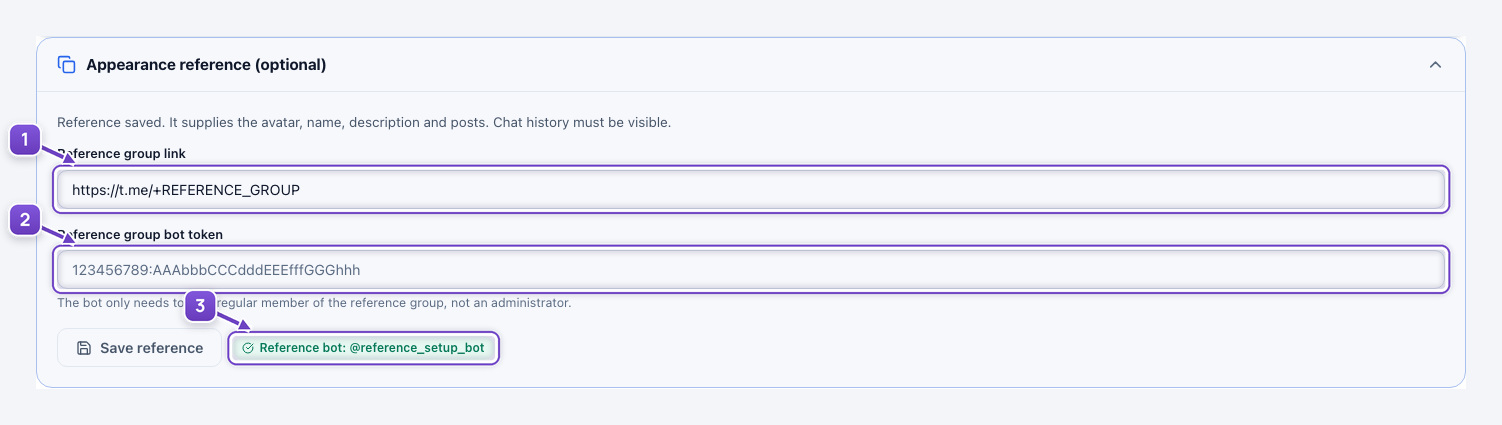
- Your reference group link.
- Reference bot token; the field clears after saving.
- Save control and bot status.
Configure AI variations
In Settings, enable the variations you need for text, images and avatars. Choose AI presets and save. The reference remains the source; your instructions tell AI what it may change.
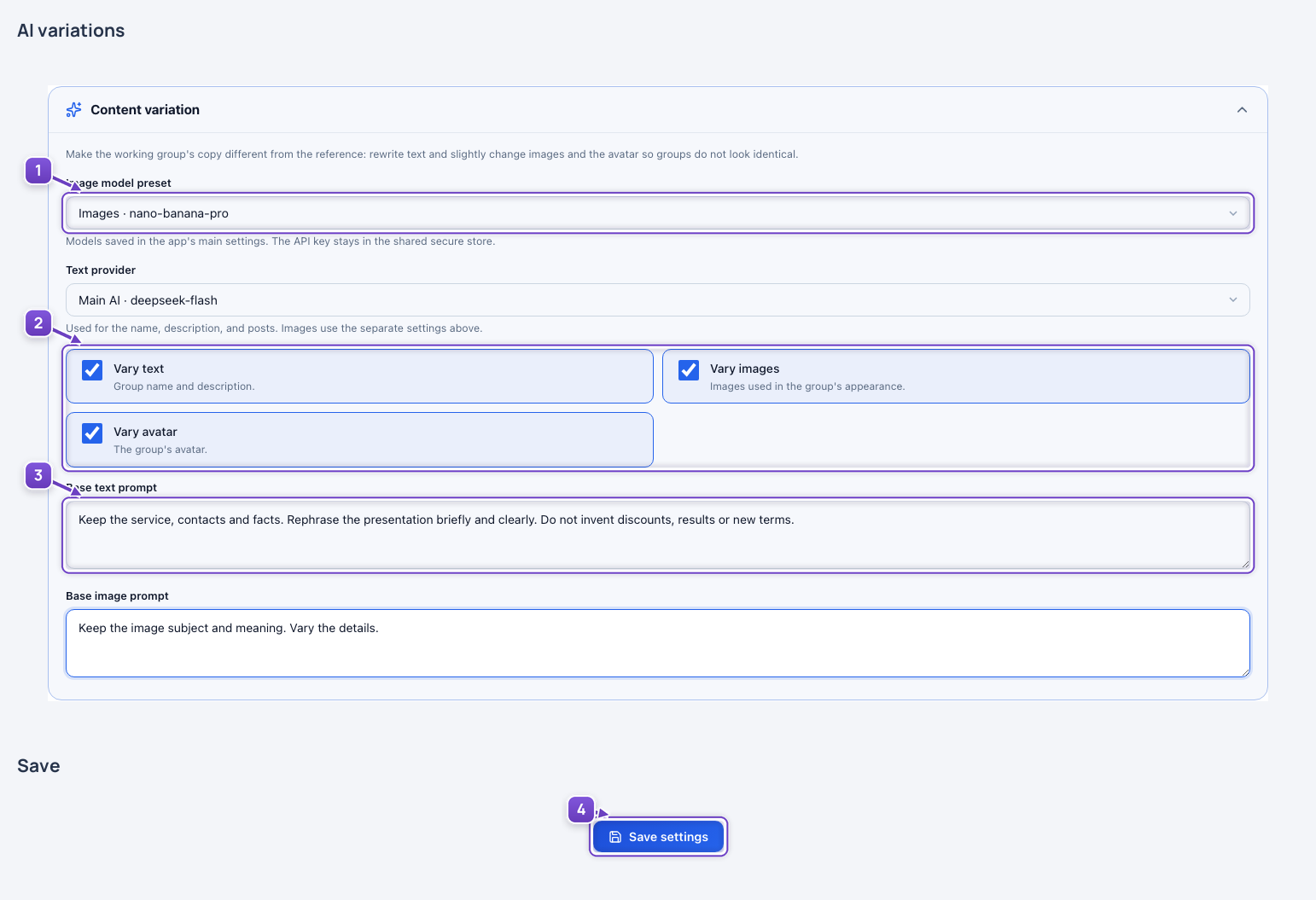
- Image model, with text AI below.
- What to vary.
- Text instructions.
- Save settings.
Keep the service, contacts and facts. Rephrase the presentation briefly and clearly. Do not invent discounts, results or new terms.
Set member permissions and the cleanup bot
In Settings, choose what members may do: send messages, media, polls and other actions. Set history visibility for new members. Select a cleanup bot and save. During setup, the program automatically adds it to the groups and grants permission to remove join and leave service messages.
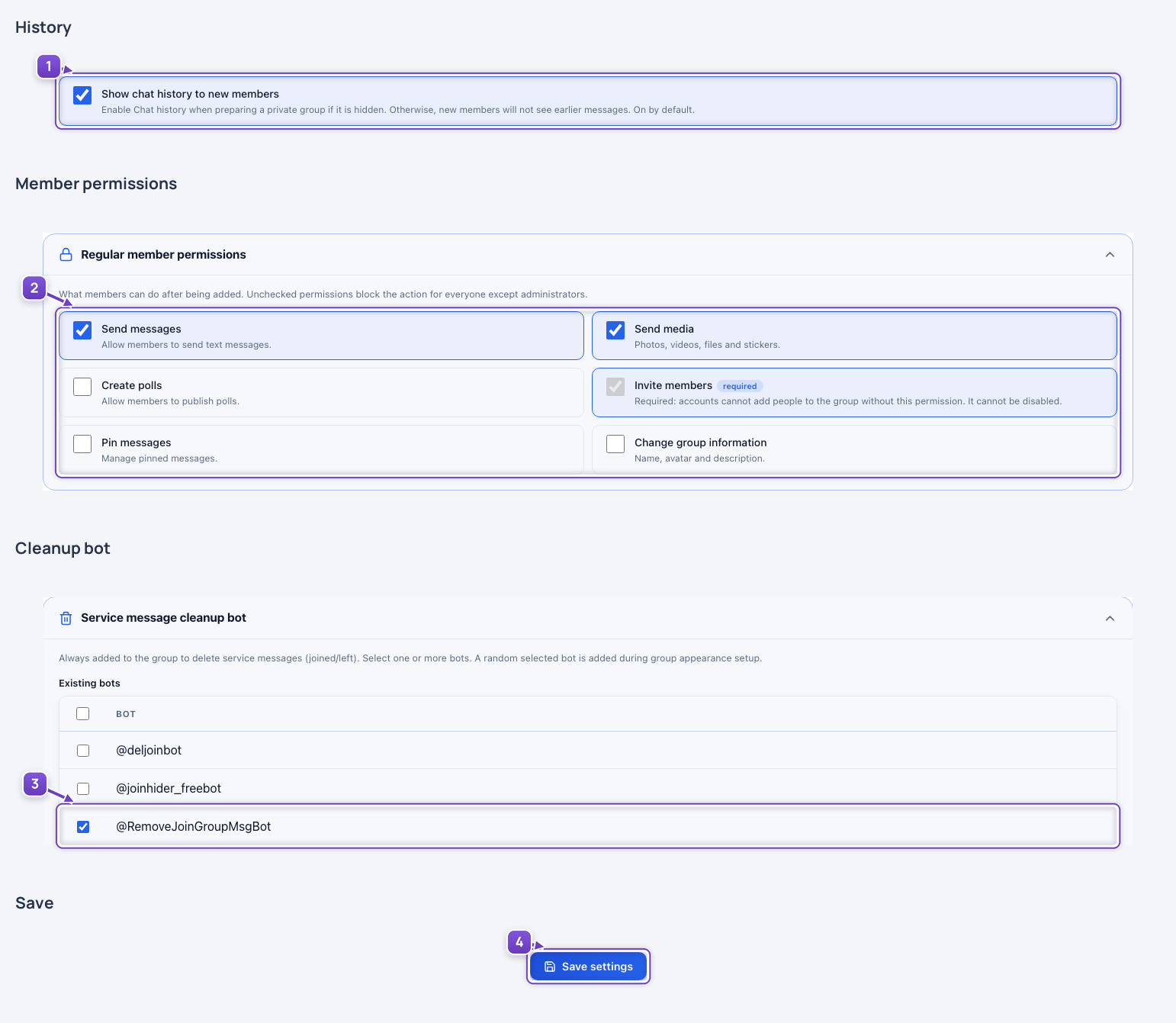
- Chat history for new members.
- Ordinary member permissions.
- The cleanup bot is added automatically during setup.
- Save the group settings.
Apply the setup to your groups
Click Set up groups on the dashboard, select the groups and confirm—20 are selected in this example. The program applies the appearance, permissions and cleanup bot. Live progress shows the preparation; an unprepared group is also set up when inviting starts.
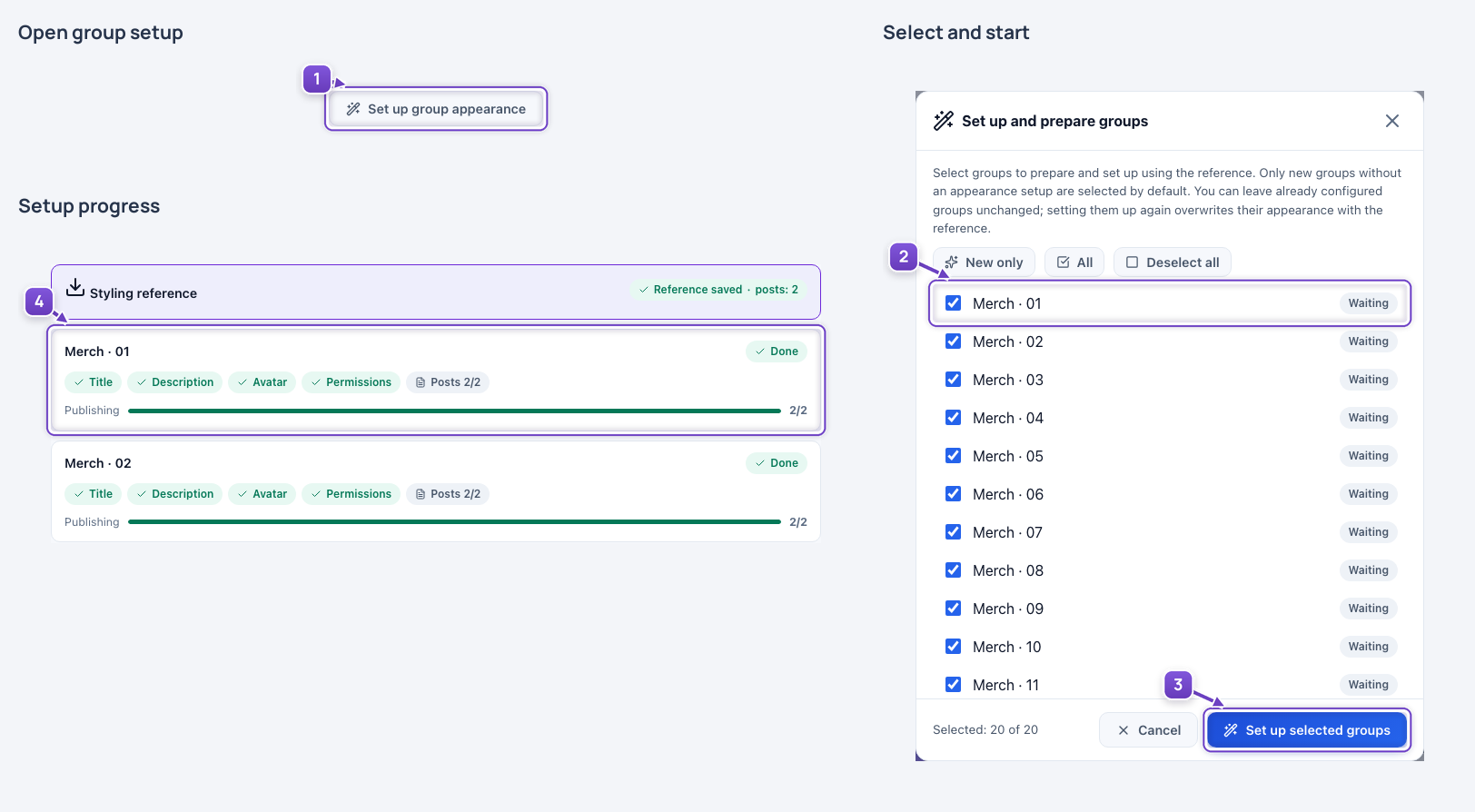
- Open bulk group setup.
- Select the groups.
- Start setup for the selected groups.
- Live setup progress.
Real-interface screenshots use isolated data: the reference and 20 groups are fictional. Model identifiers were checked against the program’s settings. No real group changes or AI requests were made.