
MegaTGAI · Practical guide
Telegram group messaging: different groups, different messages
Checked 300 groups? Do not send one advertisement to all of them. Split the list by rules and purpose: advertising, introductions, or topic discussions.
Click a screenshot to enlarge it.
Feature examples
What it looks like in Telegram
Conversations, messages and profiles as other people see them.
Feature example
Split the 300 checked groups
In this example, 120 groups allow ads, 80 allow professional introductions, and another 100 are suitable only for topic discussions. These are three separate lists, not a single task sending 300 identical messages.
- Check the group list first
Keep active, relevant communities and check their posting rules.
- Then join the selected groups
Prepare account access before sending messages.
Ad-heavy groups: plenty of promotion, but attention is fragmented. Introduction groups: introduce yourself briefly in the allowed topic and at the permitted frequency. Topic groups with an ad ban: exclude them from ordinary messaging; recommendations are suitable only when the rules permit them.
Feature example
In introduction groups, introduce your expertise
Our example service implements AI for employee quality assurance. Explain the problem you solve without a long sales pitch. Prepare your profile and channel first, so an interested reader can understand what you offer.
- Account branding: profile and channel
How to prepare names, bios and AI photos, and attach a channel.
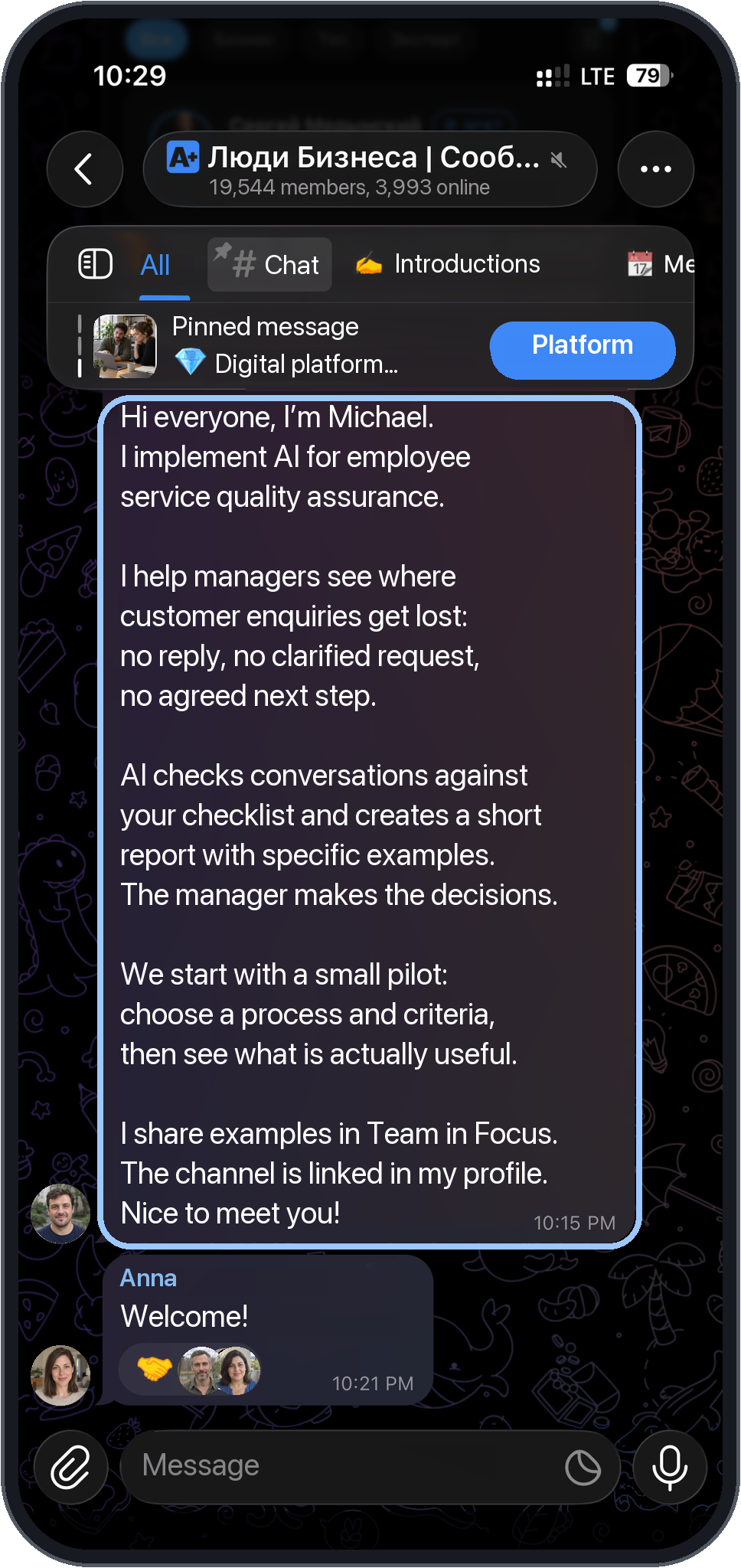
The light outline marks our example. Click a phone for a closer look.
- A live-looking group with an introductions topic: the conversation and normal Telegram interface remain visible.
- Our introduction: who we are, how we help managers and where to learn more.
Feature example
In ad groups, make a specific offer
Here you can describe the service and the next step directly. Use a separate message for this separate list. Even ad groups may limit frequency and formats. Checking the list reduces unsuitable posts and complaints, but does not guarantee that accounts will never be restricted.
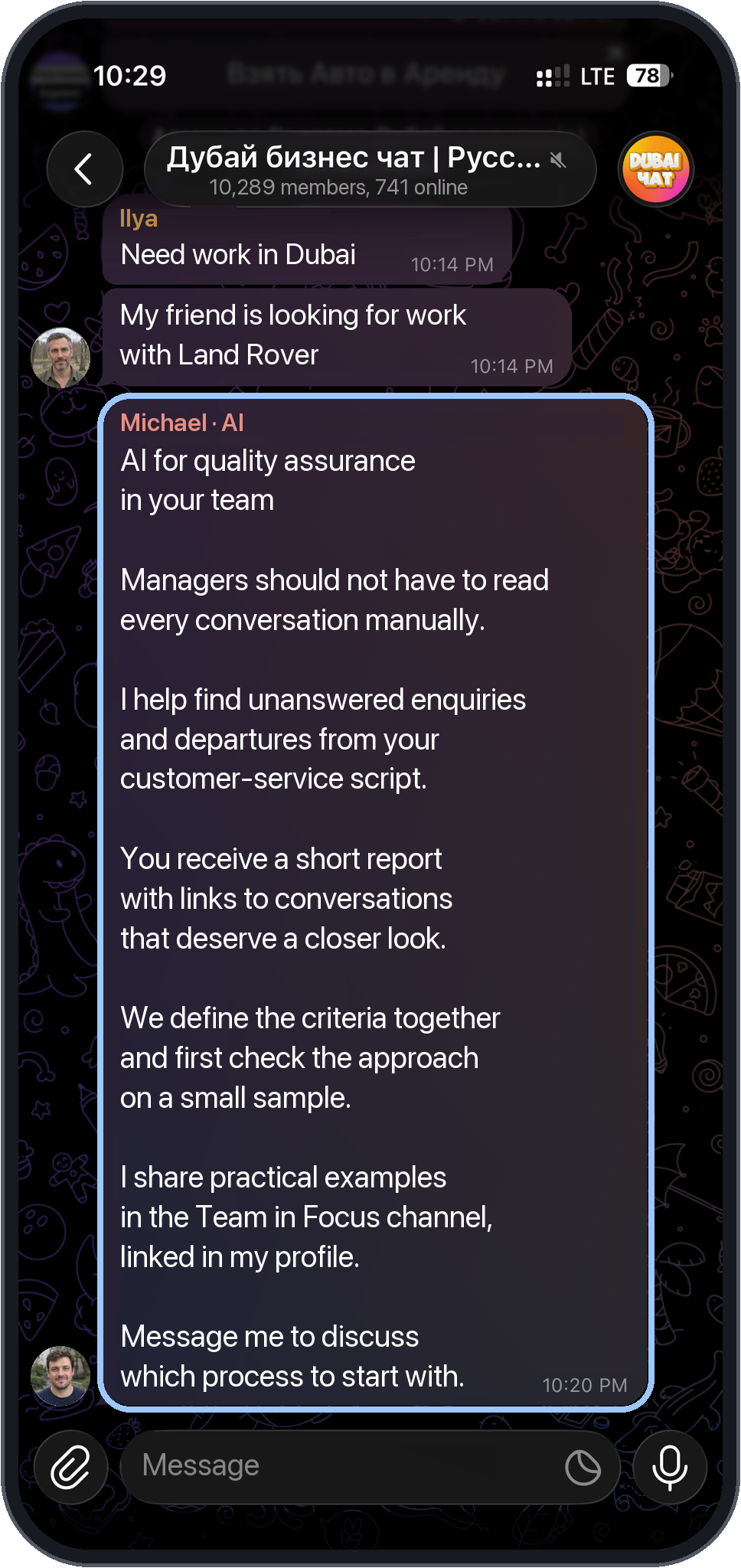
The light outline marks our example. Click a phone for a closer look.
- An AI implementation offer with a clear deliverable: a report on team service quality.
MegaTGAI setup
How to set it up in MegaTGAI
Follow the steps from selecting accounts to starting the task.
Create a group messaging task
In Communities, click ‘New task’ → ‘Messaging’. Set the streams, click ‘Select accounts’ and tick the accounts. After ‘Done’, name the task. Create a separate task for each list.
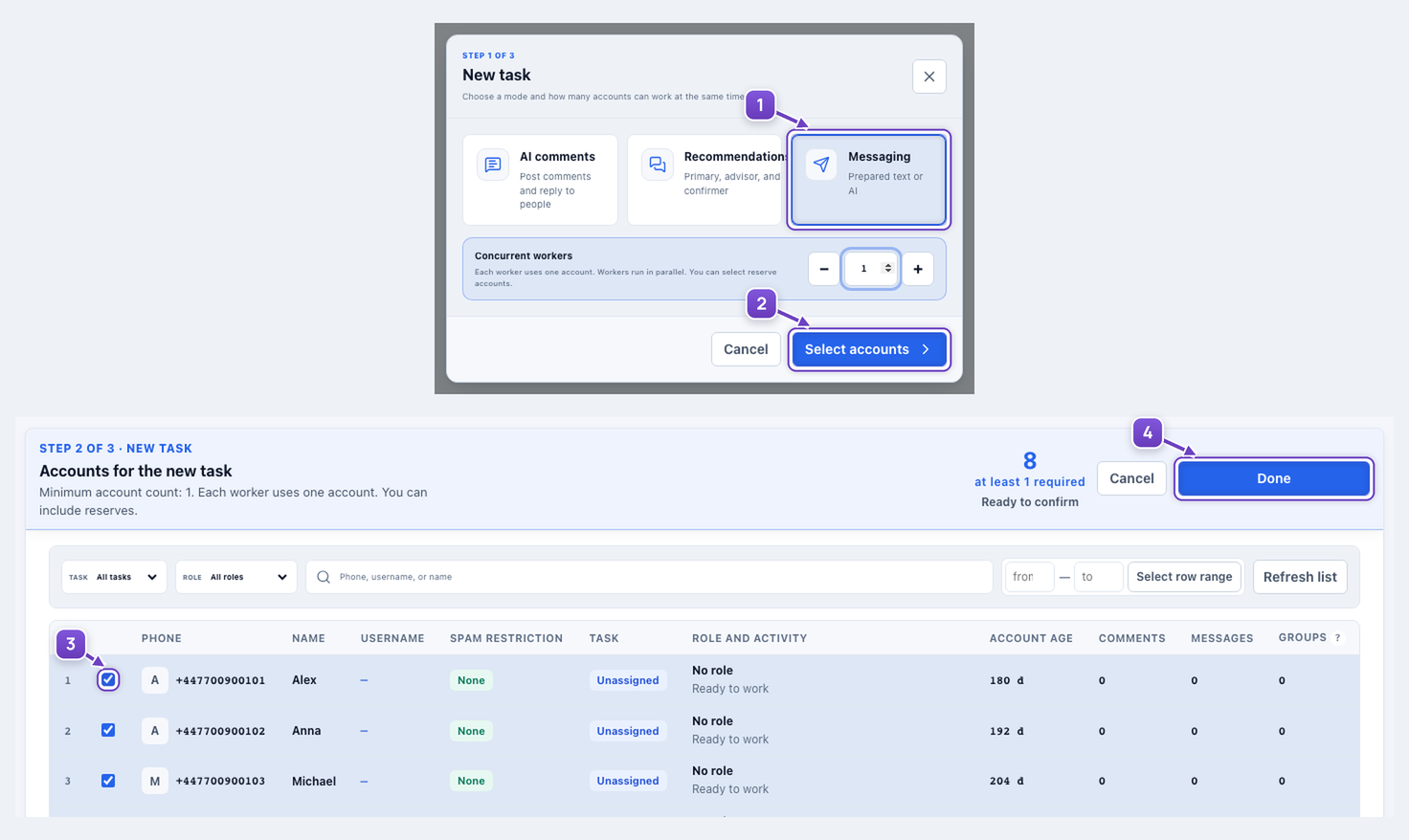
- Messaging mode.
- Open account selection.
- Tick the required accounts.
- Done — then name the task.
Load groups into the right task
Open ‘Database’ on the card or ‘Task groups’ in the editor. Check the selected task and paste one link per line. This example adds two groups to 78 already prepared, completing the list of 80.
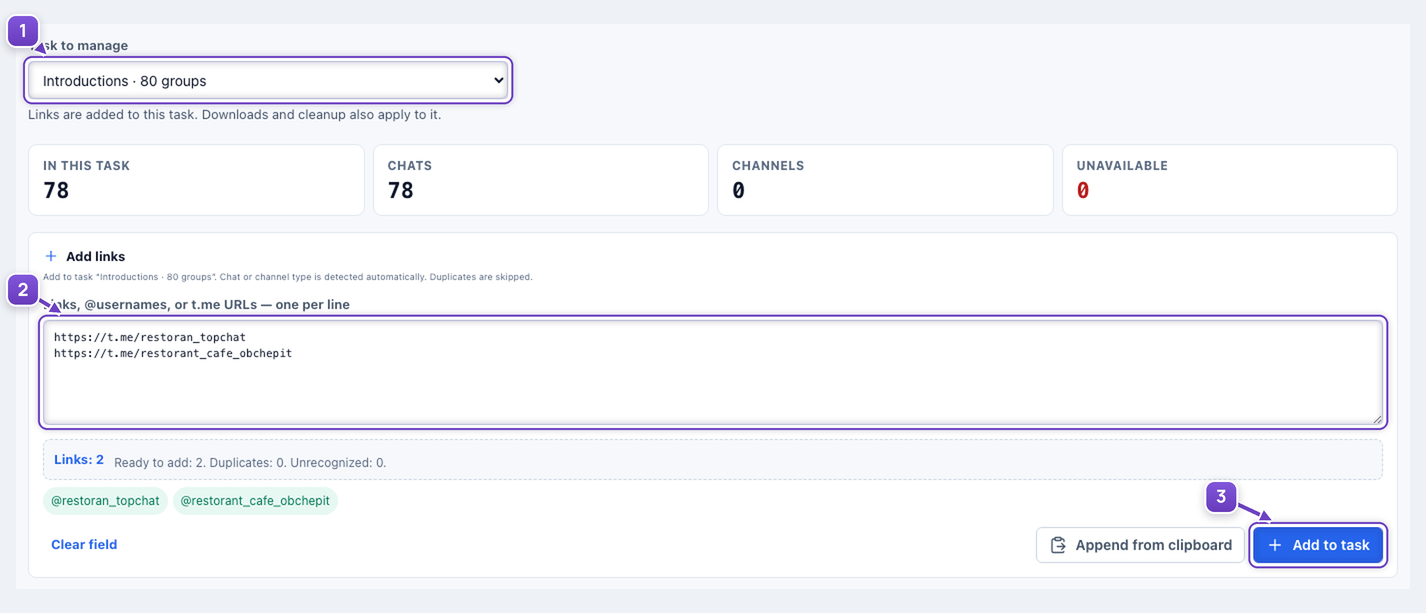
- The correct messaging task.
- Selected group links.
- Add to task button.
Choose a new AI message and set repetition
Select ‘New text from AI’, choose your AI preset and enter a short instruction. The program generates a separate message before sending to each group. ‘One pass’ goes through the list once; ‘Repeat’ starts again after a delay—seven days in this example.
- Recommendations in discussions
A different format: three replies in sequence instead of one advertisement.
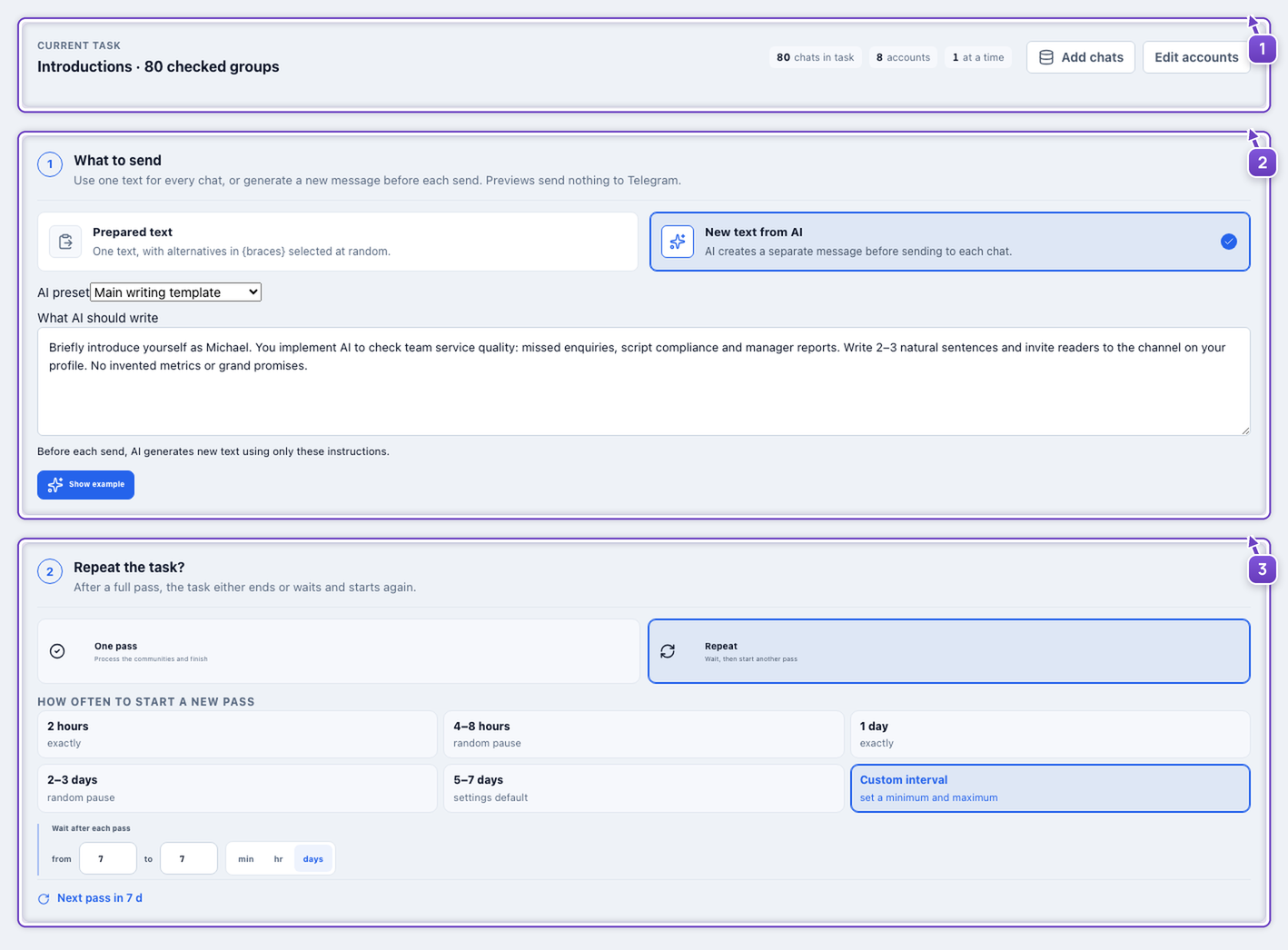
- A separate task for 80 introduction groups.
- New text from AI is selected: a preset and instructions for our service.
- One pass or repetition.
Briefly introduce yourself as Michael. You implement AI to check team service quality: missed enquiries, script compliance and manager reports. Write 2–3 natural sentences and invite readers to the channel on your profile. No invented metrics or grand promises.
Prepared text is also supported, including spintax: {Hi everyone|Hello everyone}. One option is selected before sending.
Edit accounts and start
Change accounts in the header. ‘Save changes’ stores the message and repetition settings; ‘Save and start’ begins messaging. On the task card, ‘Settings’ opens the editor and ‘Start’ runs the saved task.
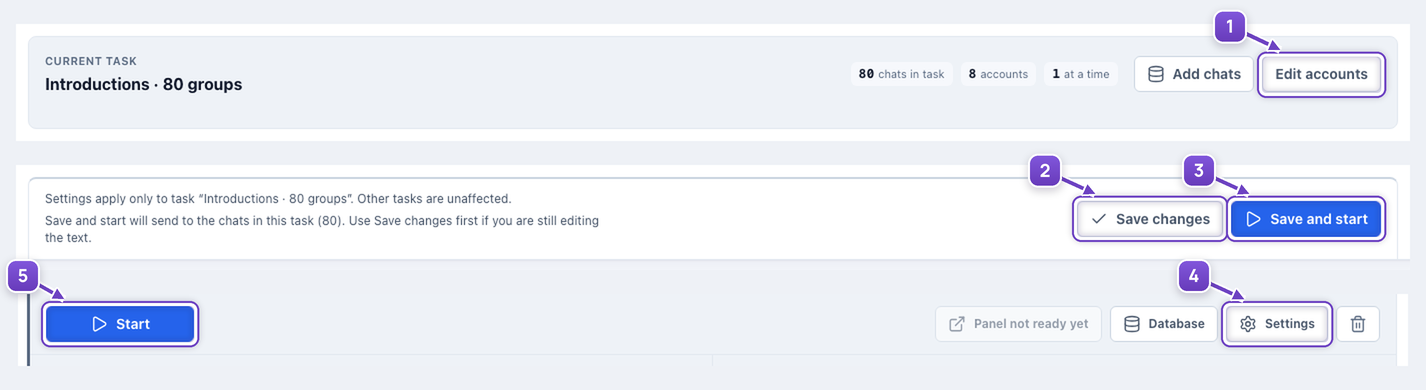
- Edit the task’s accounts.
- Save settings.
- Save and start.
- Open the editor.
- Start the saved task.
After launch
Group and comment replies in one inbox
Replies to your messages, comments and recommendations arrive in the community inbox. Choose a task or ‘All new’, open a conversation and continue it right there, using the same account.
- Explore the community inbox
Tasks, incoming conversations and operator replies.
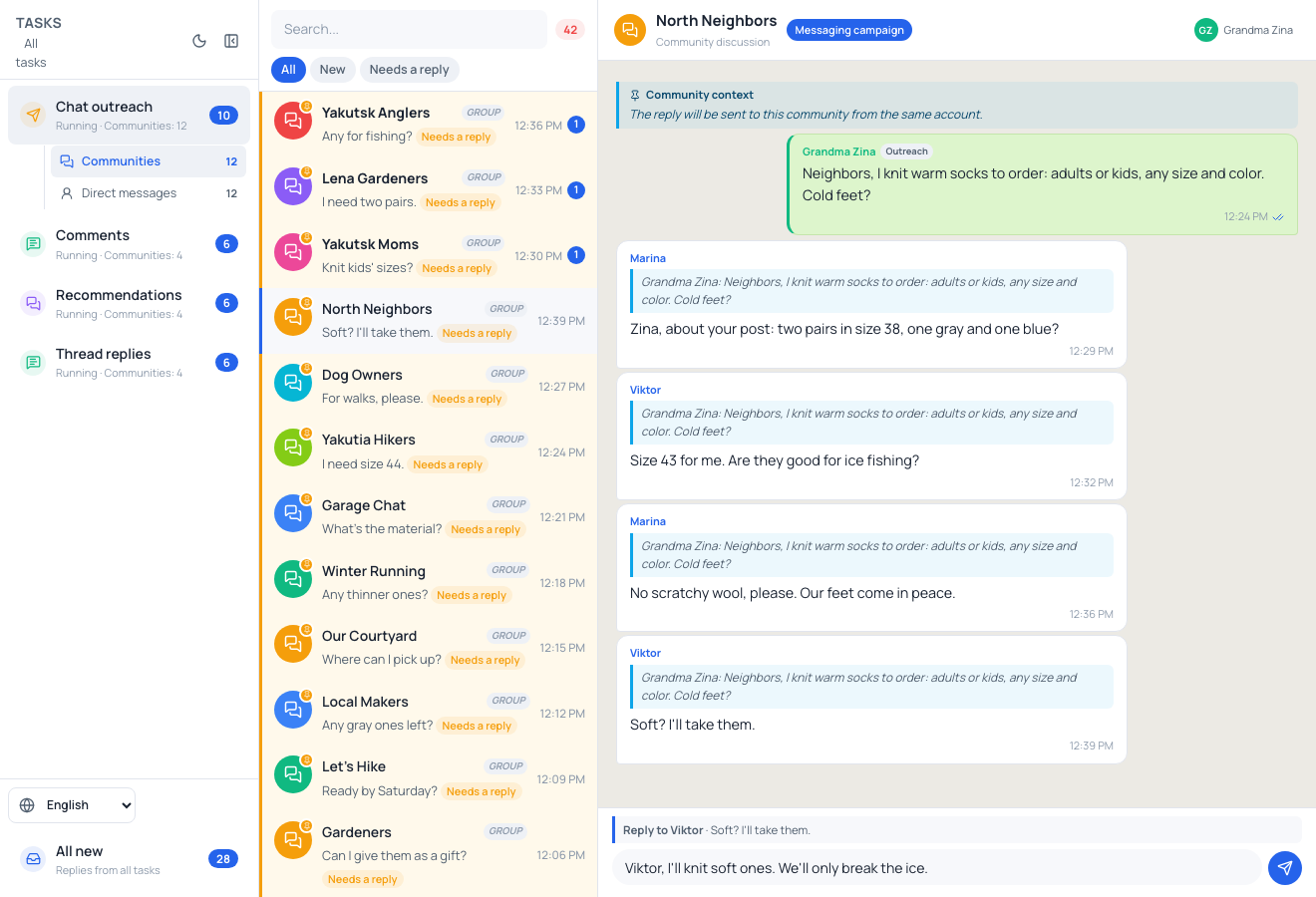
- Tasks and ‘All new’ collect replies from different communities.
- ‘Needs a reply’ helps you find conversations awaiting a response.
- On the right: the conversation and a reply field for the same account.
When direct-message intake is enabled, new inbound conversations appear under ‘Direct messages’.
The service and our messages are fictional demonstration examples. 300 = 120 + 80 + 100 illustrates how to divide a list; it is not verified statistics about the pictured communities. Telegram images are edited examples; no messages were sent.