
MegaTGAI · Practical guide
Telegram AI commenting: from a comment to a potential client
Our example service implements AI for employee quality assurance. A useful comment draws attention to the specialist, whose profile leads readers to a channel with practical explanations.
Click a screenshot to enlarge it.
Feature examples
What it looks like in Telegram
Conversations, messages and profiles as other people see them.
Feature example
Join the discussion while the topic is fresh
MegaTGAI notices a suitable new text post and prepares a relevant response. A quick comment can appear among the first replies, making it easier to notice. A reply feels more natural when it develops the person’s point instead of interrupting with an unrelated advertisement.
The phone example shows a discussion below a real post with a photo. It illustrates the conversation layout, not automated processing of that post. Our reply is added for demonstration; names and photos are replaced.
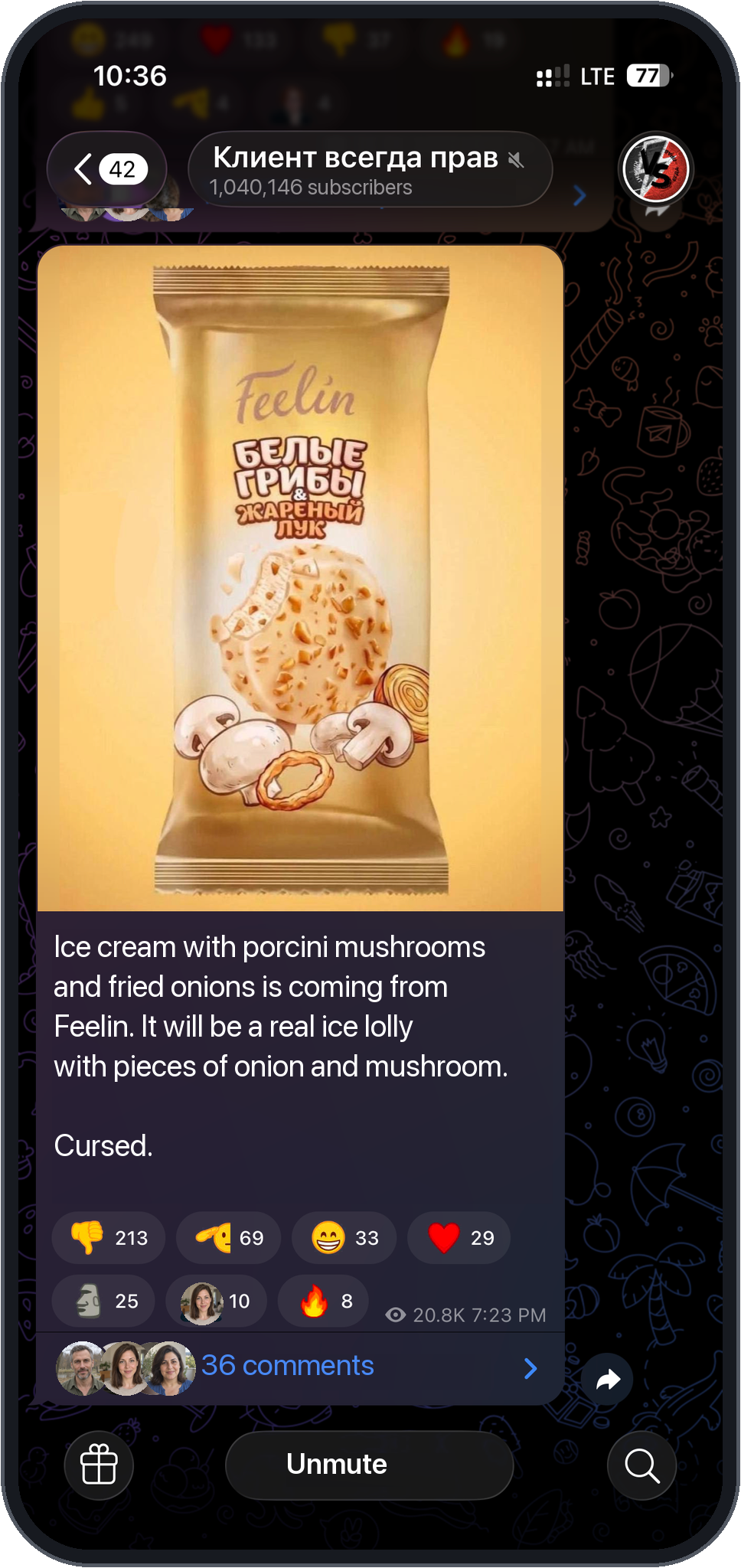
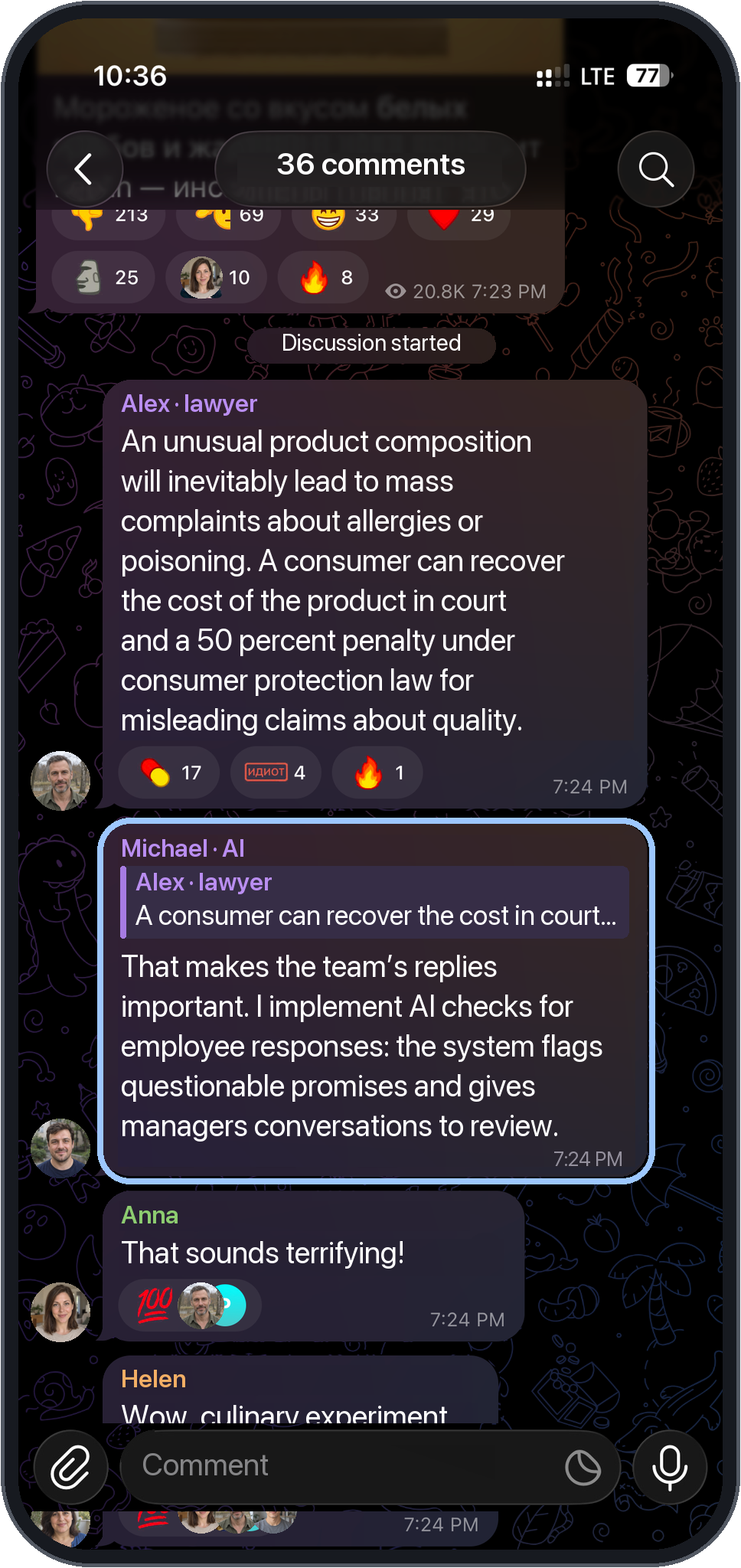
The light outline marks our example. Click a phone for a closer look.
- The original channel and post preserve the discussion context.
- Our reply quotes the comment above it, with other comments visible around it.
Feature example
Comment → profile → channel
An interested reader taps ‘Michael · AI’. The profile explains his specialty and links to ‘Team in Focus’. The latest post makes the topic clear before the reader opens the channel. Useful participation can therefore bring organic visits.
- Prepare your profile and channel
Name, bio, a matching AI photo series and a linked channel—step by step.
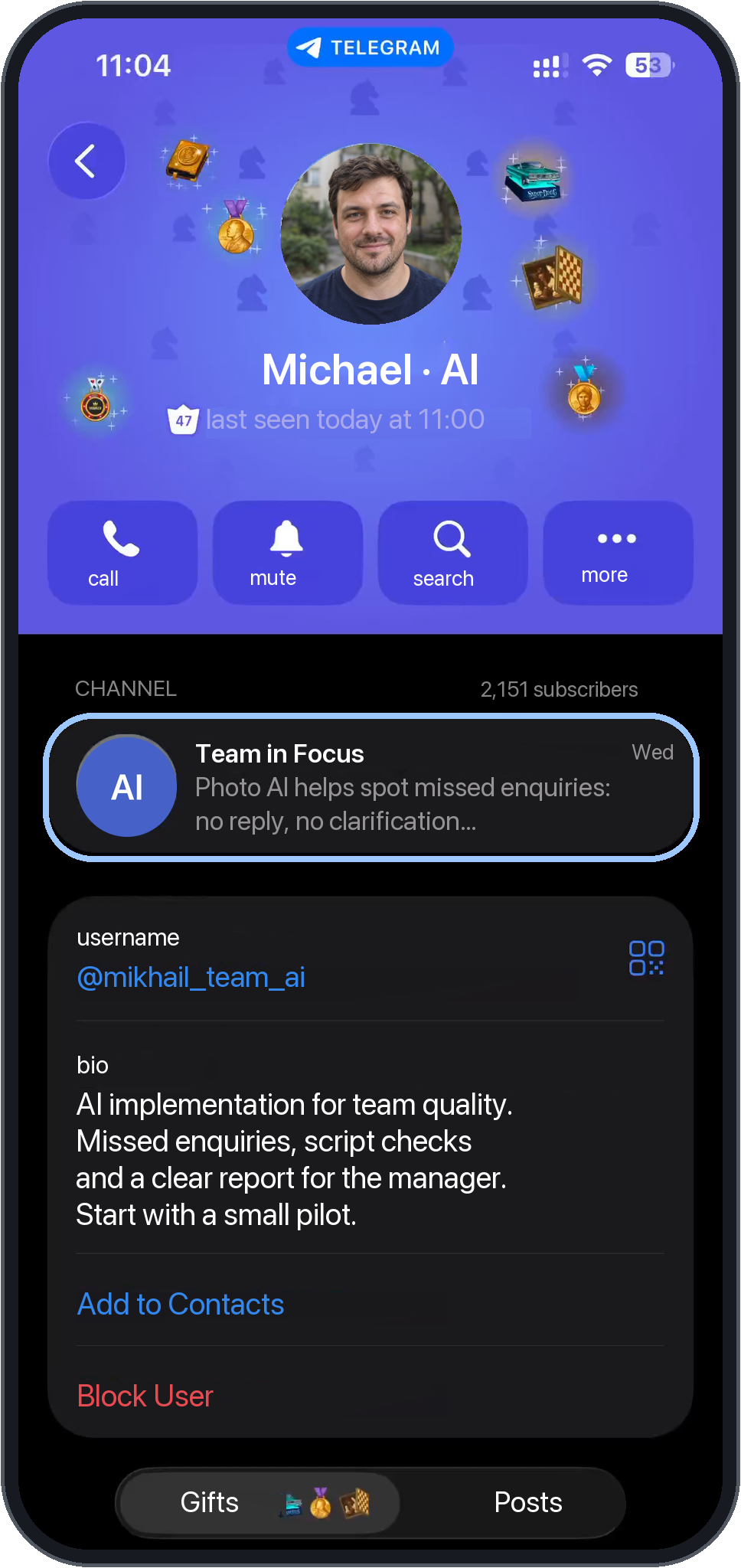
The light outline marks our example. Click a phone for a closer look.
- Profile: a clear name, service description and linked channel.
MegaTGAI setup
How to set it up in MegaTGAI
Follow the steps from selecting accounts to starting the task.
Create a task and select accounts
In Communities, click ‘New task’ → ‘AI comments’. Set the concurrent streams, open account selection and tick the accounts. Click ‘Done’, name the task and create it.
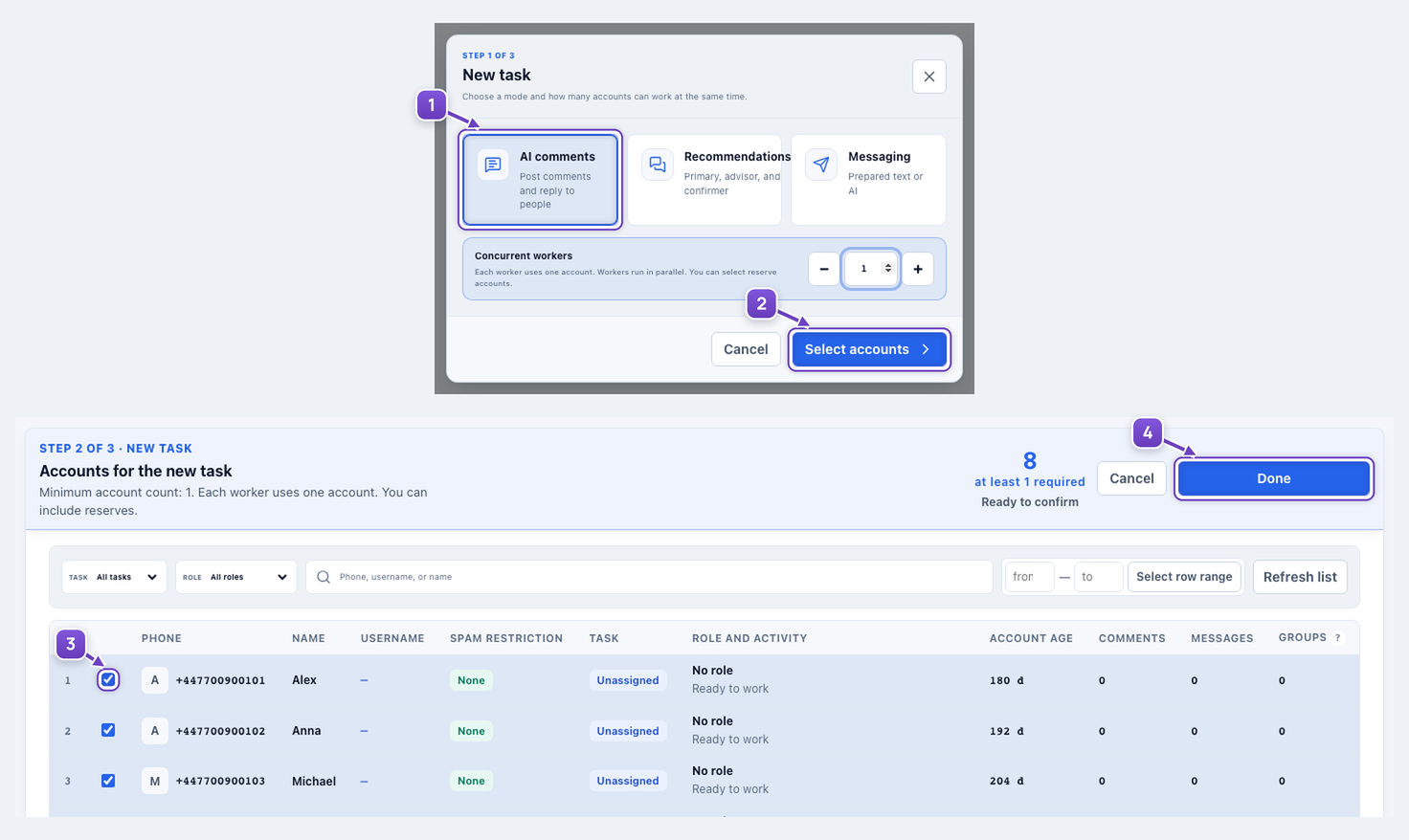
- AI comments mode.
- Select accounts button.
- Tick the required accounts.
- Done — then name the task.
Add channels to the task database
Open ‘Database’ on the task card, or ‘Open group and channel database’ in the editor. Check the selected task, paste one channel link per line, then click ‘Add to task’.
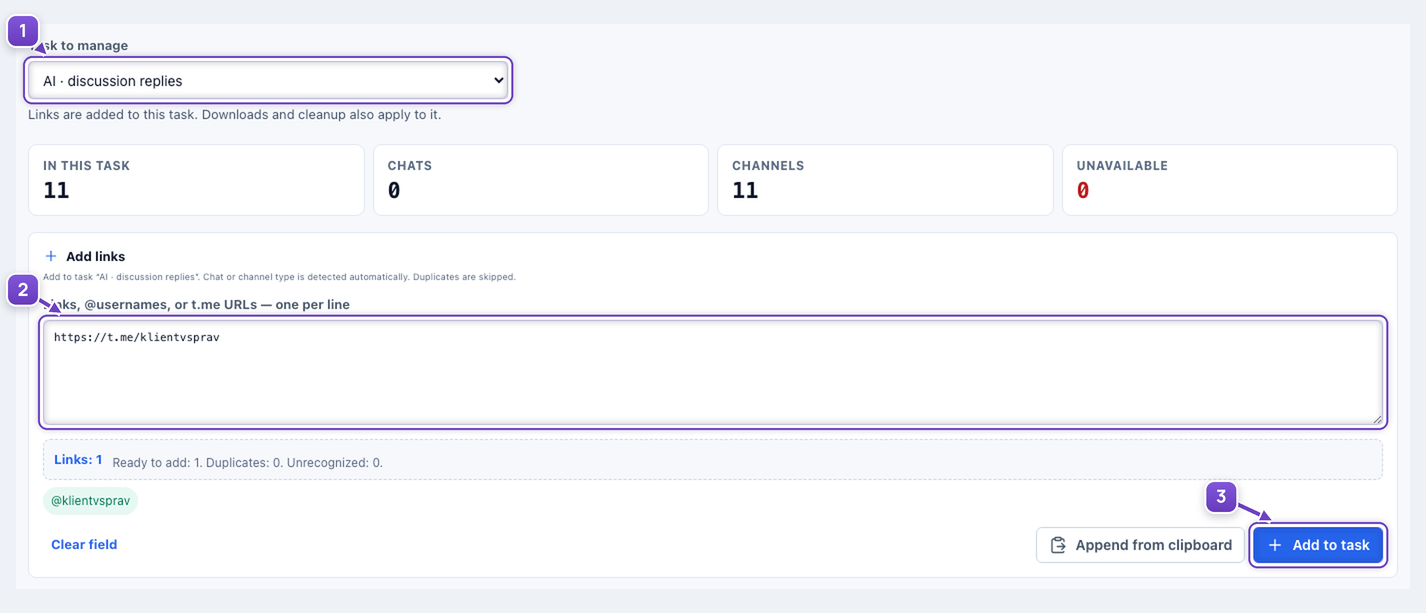
- The task receiving the channels.
- Channel links.
- Add to task button.
Choose what the AI responds to
Choose a post comment or a reply to a person. For replies, check the AI preset under ‘Who to reply to’, then the writing preset and instructions. Keep the existing detailed limits and delays.
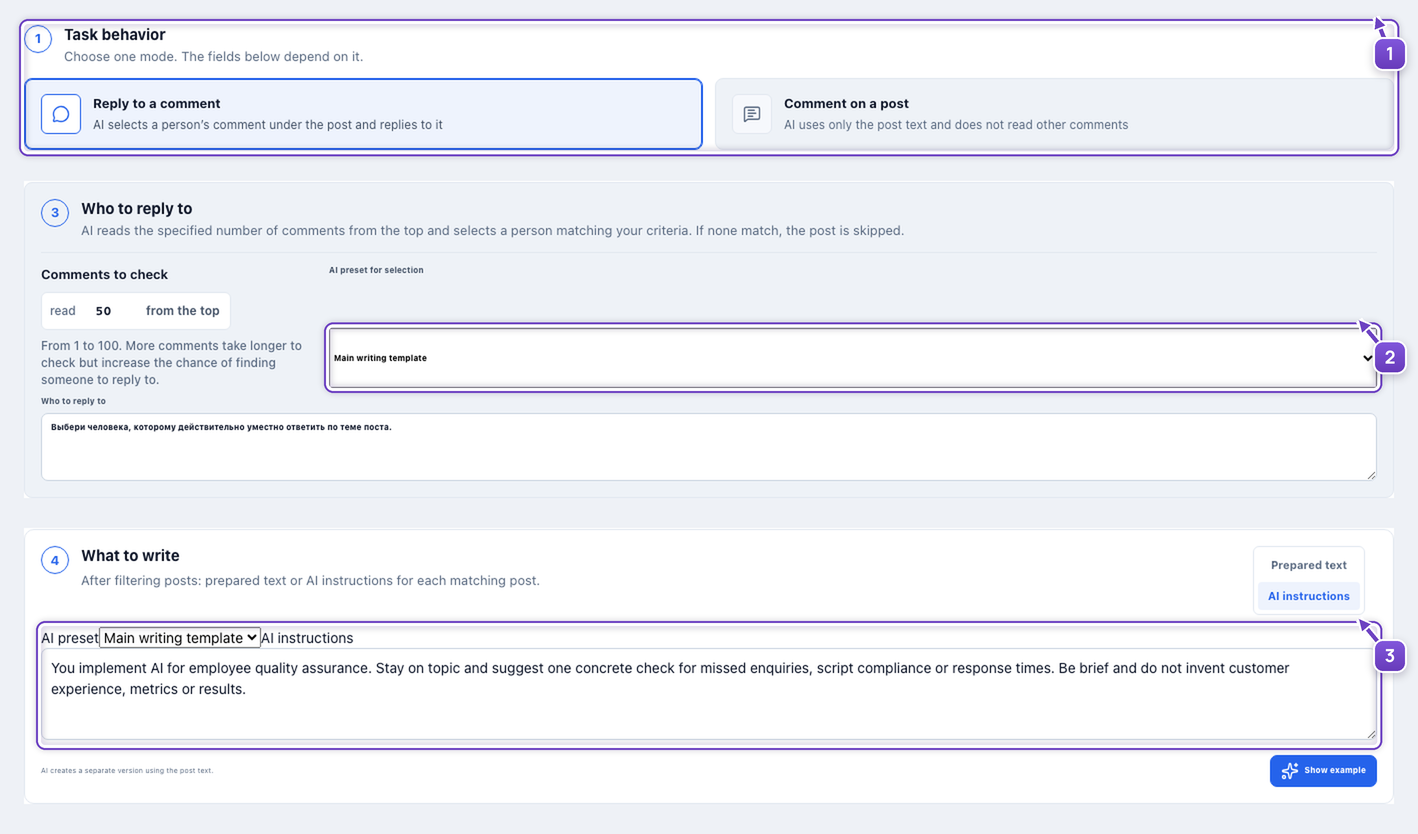
- Choose one of the two modes.
- AI preset for selecting a comment.
- Writing preset and instructions.
You implement AI for employee quality assurance. Stay on topic and suggest one concrete check for missed enquiries, script compliance or response times. Be brief and do not invent customer experience, metrics or results.
Ordinary prepared text supports spintax: {option 1|option 2}. This example uses AI. New text posts are supported; posts with photos, videos or other media are skipped even with a caption.
Save settings and start
Click ‘Save and start’ at the bottom of the editor. ‘Save changes’ only saves. A ready task also has a ‘Start’ button; ‘Settings’ opens its editor. Use the header button to change accounts.
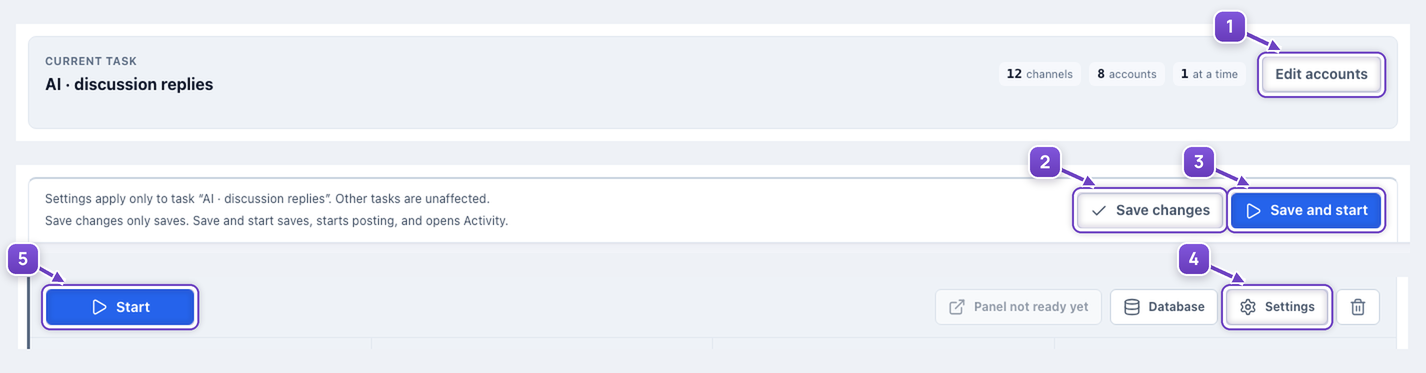
- Edit accounts.
- Save without starting.
- Save and start.
- Open the task settings.
- Start from the task card.
After launch
Group and comment replies in one inbox
Replies to your messages, comments and recommendations arrive in the community inbox. Choose a task or ‘All new’, open a conversation and continue it right there, using the same account.
- Explore the community inbox
Tasks, incoming conversations and operator replies.
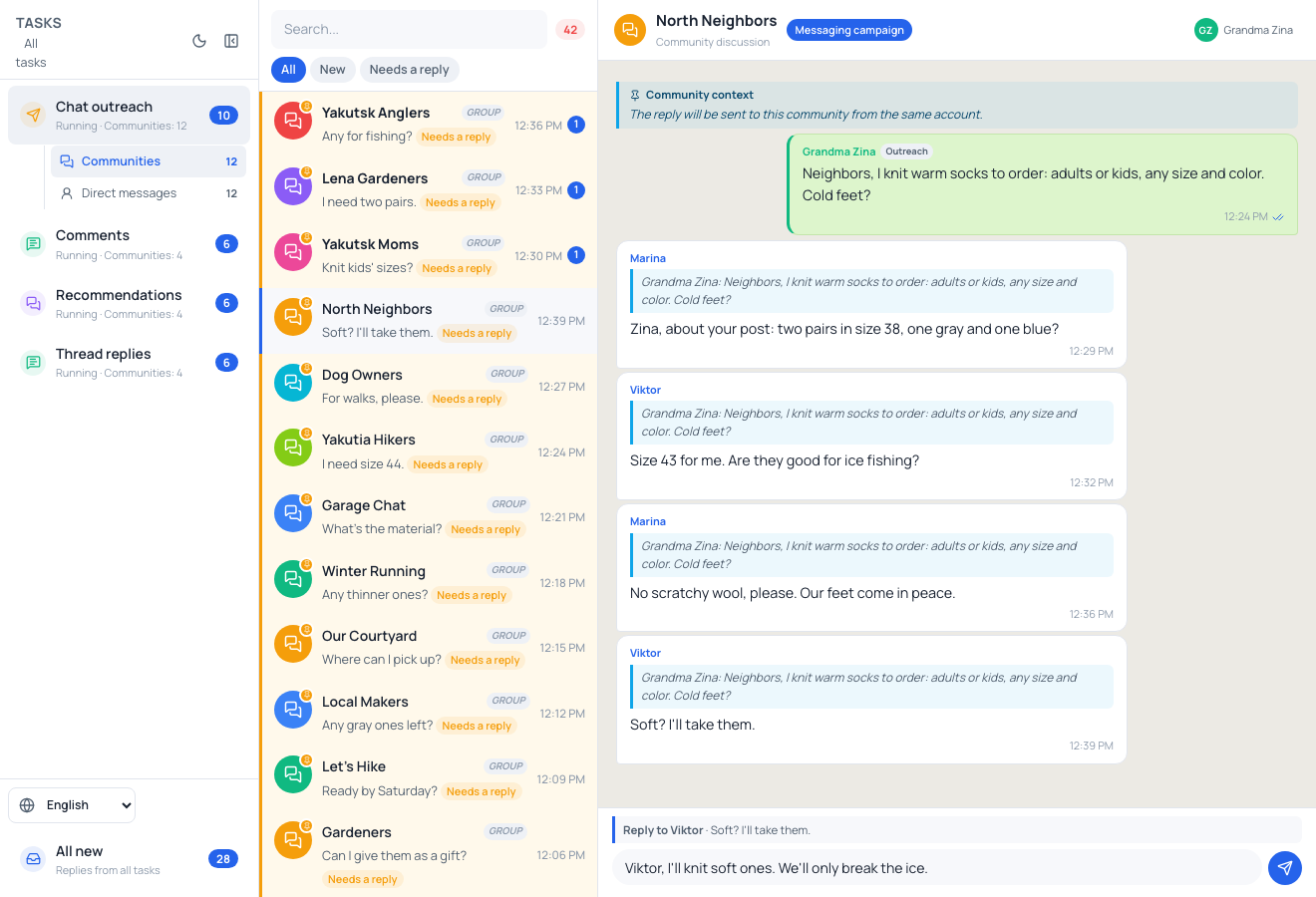
- Tasks and ‘All new’ collect replies from different communities.
- ‘Needs a reply’ helps you find conversations awaiting a response.
- On the right: the conversation and a reply field for the same account.
When direct-message intake is enabled, new inbound conversations appear under ‘Direct messages’.
The service, consultant, his channel and our reply are fictional examples. The public post and surrounding comments come from the phone reference; this is not an actual campaign result. Application settings are captured without sending messages.