
MegaTGAI · Practical guide
MegaTGAI features for Telegram messages
Use someone’s name, tailor an offer to their company, follow up when they ask and hand a ready lead to your teammate. These MegaTGAI features help you do it.
Click a screenshot to enlarge it.
Variables: make a template feel personal
Open Variables and functions in a funnel stage. Click a token to insert it into the text. At send time, MegaTGAI substitutes the person’s or conversation’s data.
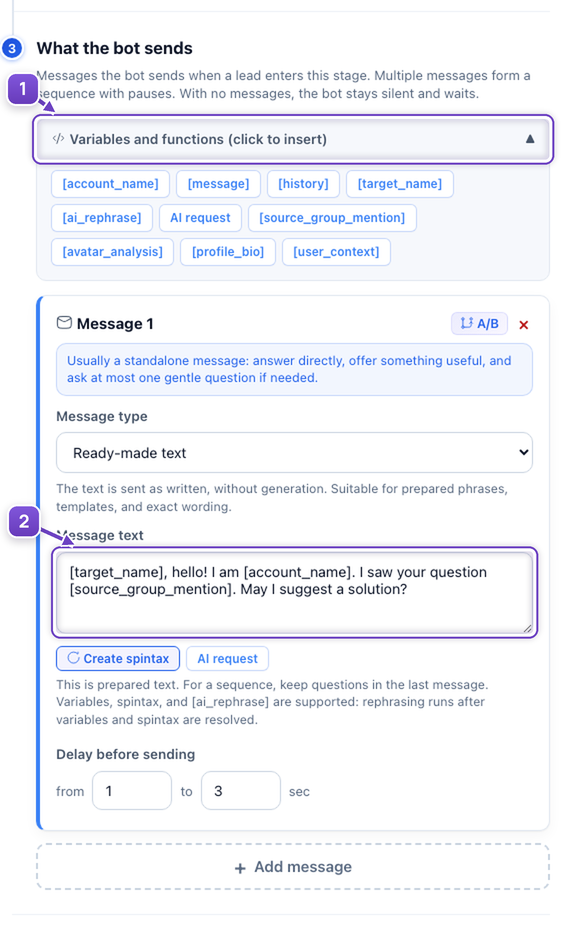
- Open the variable list.
- Insert the tokens into a message or AI instruction.
[target_name]The recipient’s name, normalized by AI: for example, “Bob” → “Robert”. This makes the greeting more polished. If no reliable name is found, a random nickname is not used.
[account_name]The sending account’s first name, so each account introduces itself correctly.
[source_group_mention]The group where you found this person. Start with “I saw your message [source_group_mention]” to explain how you came across them.
[profile_bio]The Telegram profile bio. Gives AI extra information the person has shared there, such as their profession or occupation.
[user_context]Details you imported into the database for this person: first, middle and last name, company and company information. Use them for a precise personal greeting and an offer tailored to that business.
[avatar_analysis]An avatar description. For dating, AI can write a relevant compliment based on the photo instead of sending everyone the same line. Requires a model that can analyze images.
Legacy aliases [описание_профиля] and [текст_из_базы] also work: they mean [profile_bio] and [user_context]. Token spelling stays unchanged.
AI and text variants: less manual writing
[ai_rephrase]AI rephrases the finished message before sending. Use it to vary the wording while keeping the meaning.
[ai]…[/ai]AI writes a specific part of your template. Example: [ai]Write a one-sentence offer for this company using these details: [user_context][/ai]. The rest of the text stays yours.
{option 1|option 2}Spintax chooses one of your prepared alternatives, such as {Hello|Good afternoon}. Use it when you want direct control over the wording.
Example: “[target_name], hello! I’m [account_name]. I saw your question [source_group_mention]. May I suggest a solution?” Check the substitutions with Test before launching.
Choose a format for the job
Use static text for an exact phrase or link, and an AI message when the reply depends on the question and history. Photos, videos, voice messages, video notes and files help demonstrate a product or share a document. Forwarding keeps the post source; a hidden forward copies the material without an author link.
Several messages form a sequence with pauses. A/B variants help compare opening lines with your audience instead of guessing.
Reactions: acknowledge the person briefly
Choose a reaction such as 👍 for a stage. On entry, it is applied to the incoming message that triggered the transition. It acknowledges a reply without sending another “OK”. It does not apply to an opening stage with no incoming message.
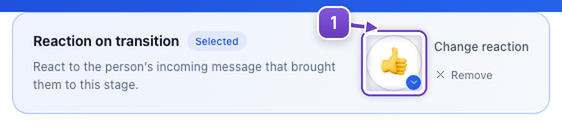
- Choose a reaction in the relevant stage settings.
Send later: follow up when the person asks
Someone replies: “I’m busy now, message me tomorrow afternoon.” Use a stage with a scheduled message: AI works out the time from their request and the selected time zone, and Telegram sends it later. No personal reminder or manual follow-up is needed for every conversation. For a fixed interval, set a delay in hours and minutes instead of AI timing.
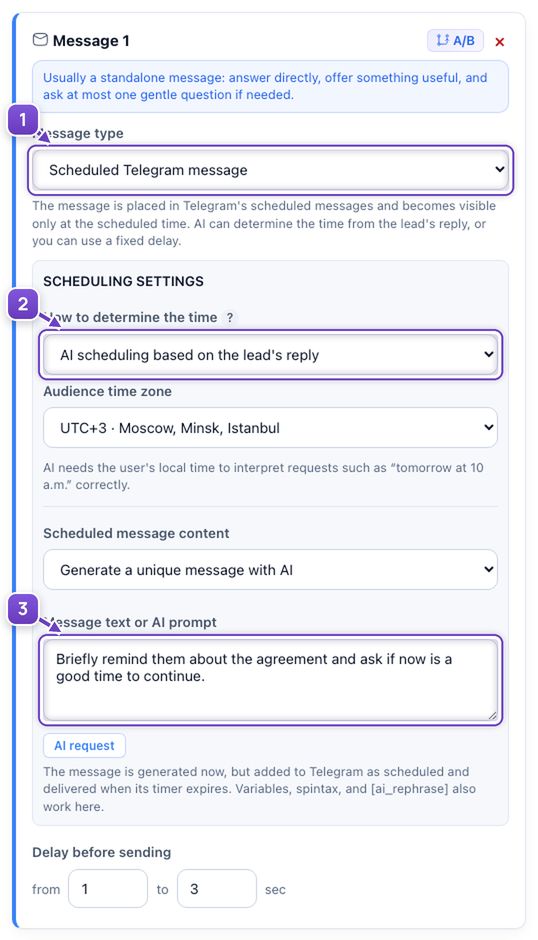
- Choose Send later.
- Use AI to follow the person’s request, or set a fixed delay.
- Write the follow-up message or ask AI to compose it.
The opening stage supports a fixed delay: there is no customer request to interpret yet.
Telegram bot notifications: hand ready leads to your team
The lead is interested and ready to discuss buying. Set a Telegram bot notification at this stage: your teammate receives the customer’s name, a short conversation summary and a link to the dialogue. They can take over the sale without checking hundreds of conversations. The notification template can include:
{first_name} · {username}Name and @username, to identify the lead.
{last_message} · {last_message_time}The latest message and its time, to understand the current request.
{dialog_link}A direct conversation link, so there is no need to search across accounts.
{ai_summary}A short AI summary, to help your teammate join the conversation quickly.
{stage_name}The current stage, showing how far the conversation has progressed.
Lead nurturing: what happens after the first message
Create Reminder and Useful example stages with their messages first. Open the relevant stage in Funnel and scroll to the automatic-move settings. Follow the purple numbers.
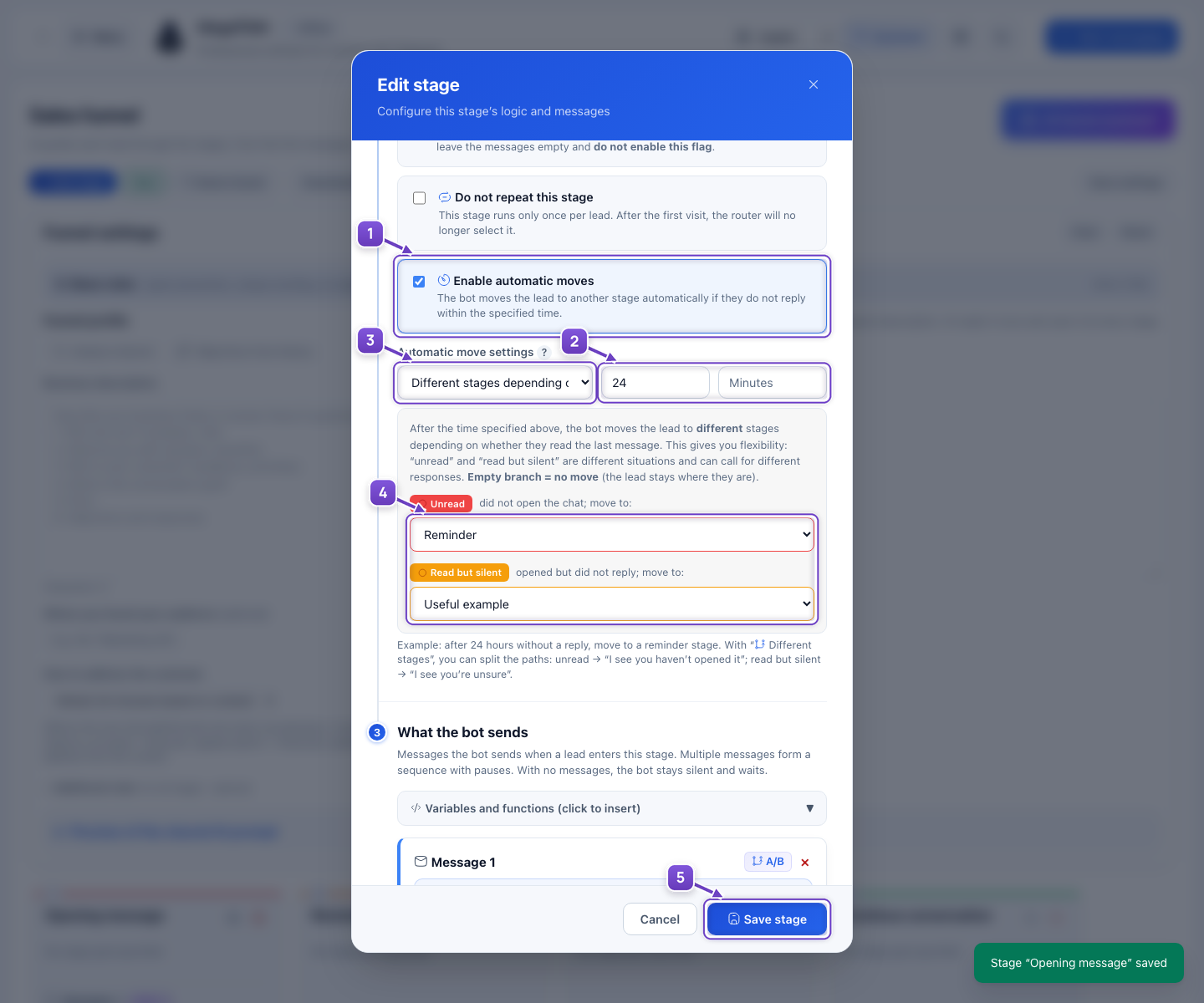
- Turn on “Enable automatic moves”.
- Set the wait: 24 hours in this example.
- Choose “Different stages depending on whether the lead read it”.
- Unread → Reminder; read but silent → Useful example.
- Click “Save stage”.
If they reply, the conversation continues according to your funnel conditions. Otherwise, the selected branch runs after the wait. Timing starts from our last sent message; an unset branch does not move the contact.
Set this up by chatting with AI
In Funnel, click “AI funnel assistant” and follow the connection instructions. Then just chat with AI: describe the messages you need and what to do after a reply, an unread message or silence.
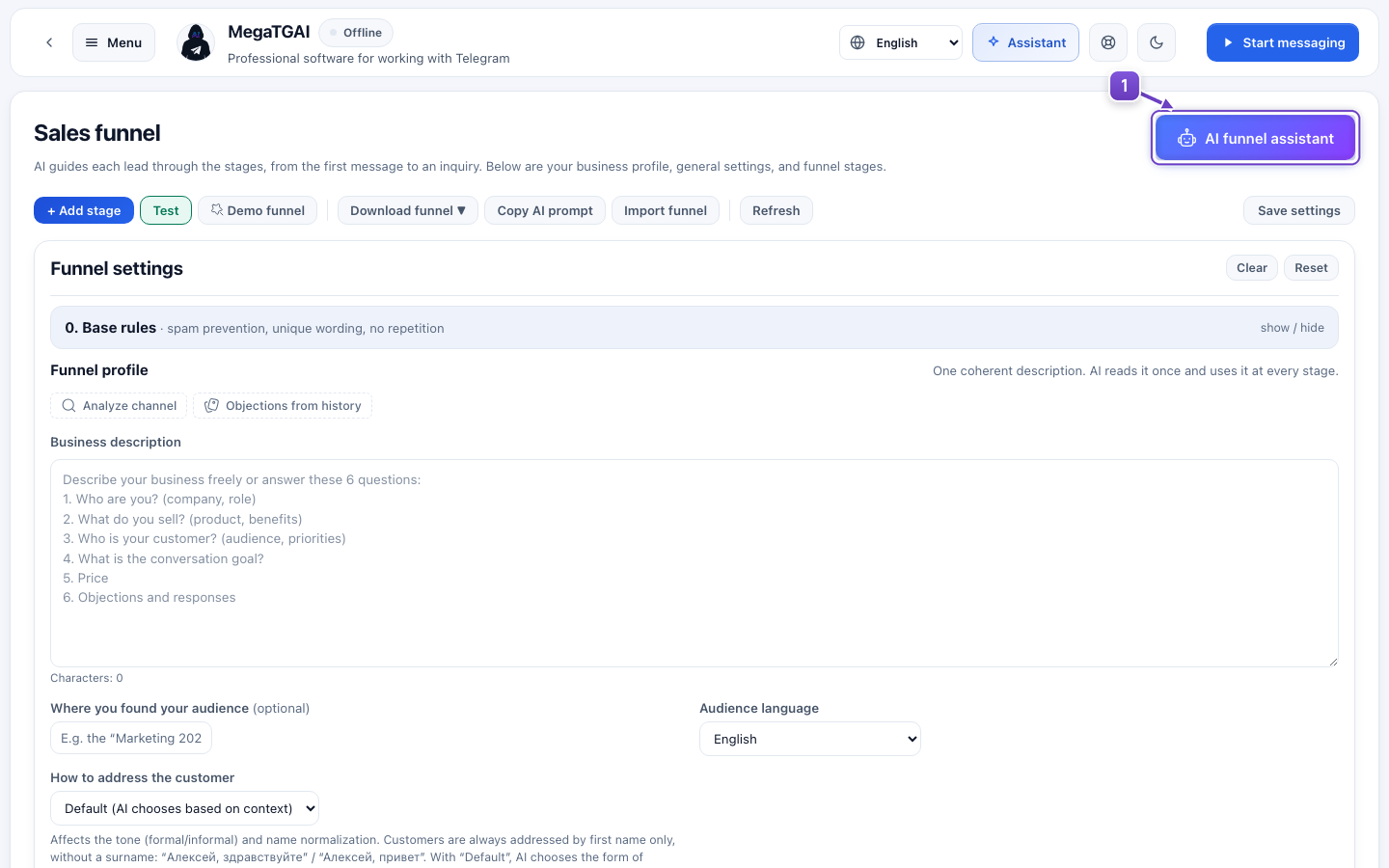
- Click this button in the program to open the assistant’s connection instructions.
Screenshots show example message settings.