
MegaTGAI · Practical guide
TGStat leads: how to set them up in MegaTGAI
Someone has already posted that they need your service. TGStat finds the mention, AI separates a buyer’s request from advertising, and MegaTGAI sends a private reply quoting the original request.
Click a screenshot to enlarge it.
Set up TGStat notifications
Set up your searches in TGStat and send notifications to a Telegram group. Then connect that group to MegaTGAI.
Connect the notification group
Open the funnel’s first stage and enable TGStat lead monitoring. Use the folder button to add one monitor account: its .session and .json files. Enter the notification group link. The monitor reads the group; worker accounts send the private replies.
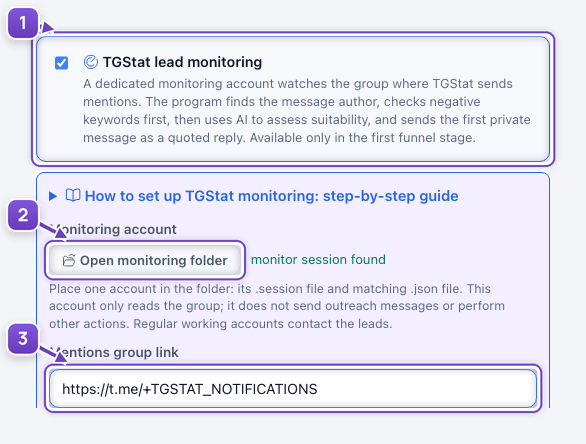
- TGStat mode on the first stage.
- The dedicated monitor account’s folder and readiness.
- The group receiving TGStat notifications.
Tell AI what qualifies as a lead
Describe the buyer’s request in the selection criterion and choose an AI preset. This separates a printing company’s advertisement from someone looking to order printed T-shirts.
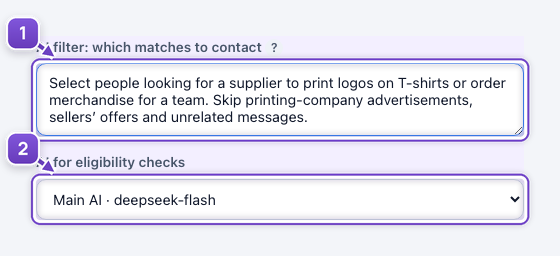
- The buyer-request criterion.
- AI preset for selection.
Select people looking for a supplier to print logos on T-shirts or order merchandise for a team. Skip printing-company advertisements, sellers’ offers and unrelated messages.
Set the first message and start
Choose the AI task message type and describe your service. Save the stage, then click Start messaging in Overview. The reply is linked to the original request so the person can see what you are responding to.
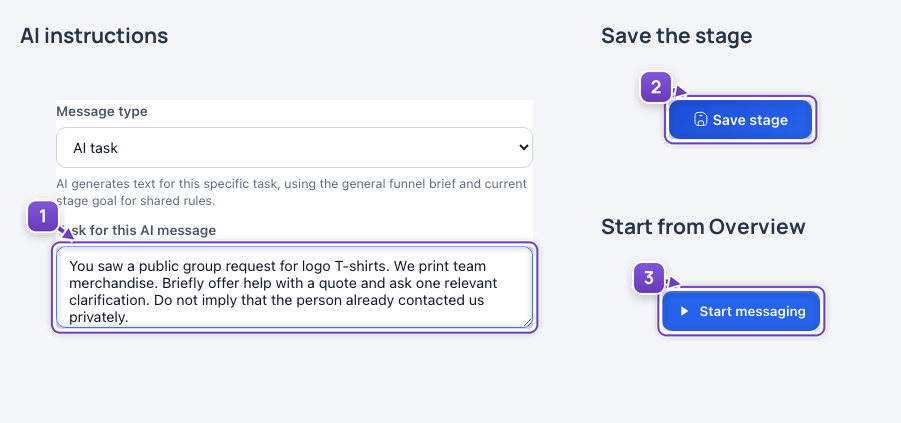
- AI instructions for the private reply.
- Save the stage.
- Start messaging from Overview.
You saw a public group request for logo T-shirts. We print team merchandise. Briefly offer help with a quote and ask one relevant clarification. Do not imply that the person already contacted us privately.
When first enabling this mode, the program asks to clear its target database, stored conversations and queue. This is a real operation; funnel stages remain. You do not need to upload a cold audience list for this mode.
Screenshots use the real interface with isolated teaching data. Accounts and the notification group are fictional; no real messages were sent or data cleared.